
By default, the NDD Print MF HP (MF Admin) shortcut is configured to run with administrator permissions. To allow a user or group of users to operate NDD Print MF HP without these permissions, an administrator must grant the necessary permissions.
Grant permissions to a user or group
-
Navigate to the NDD Print MF HP installation directory:
-
For installations using the default path, the directory is:
-
C:\Program Files\NDDigital\nddPrint\MF\HP\
-
Right-click the NDDigital.nddPrint.HP.MF.AdminPermissions tool and select Run as administrator.
-
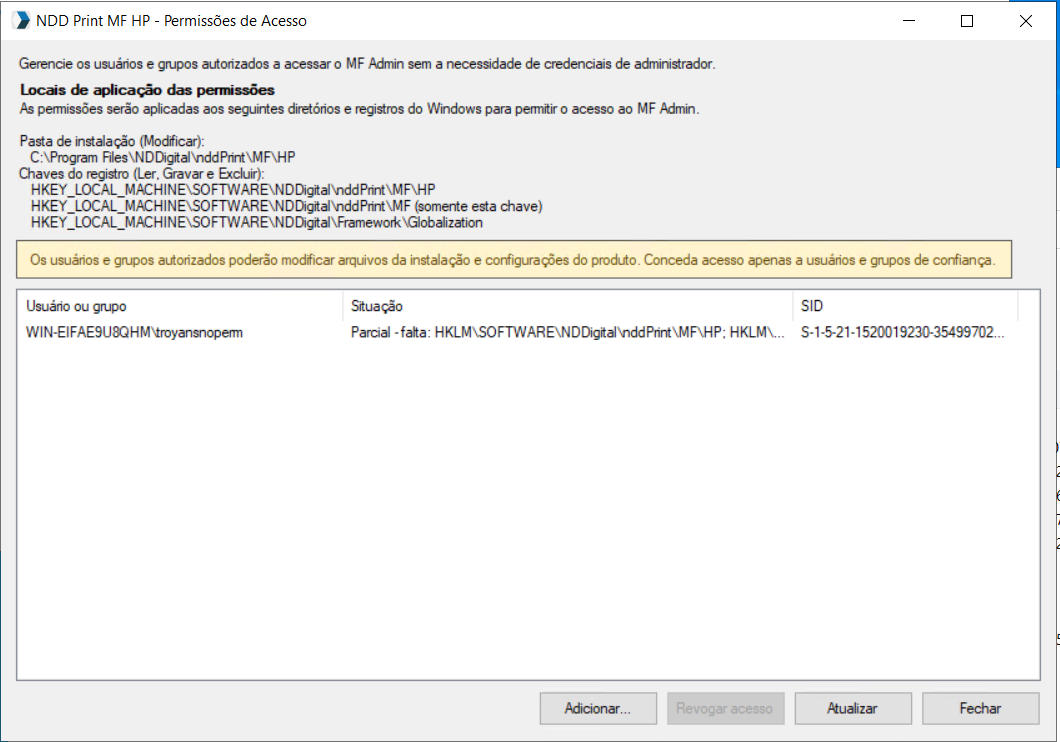
Click Add.
-
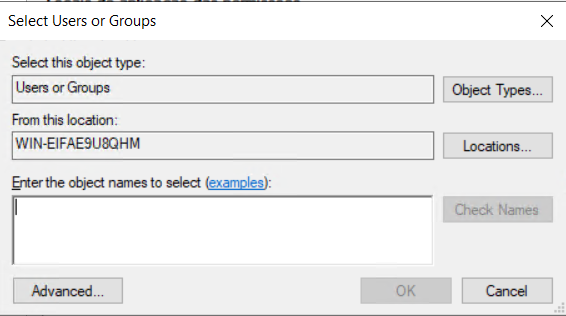
In the Windows selection window, search for and select the user or group that will be granted access. Confirm your selection.
-
Check to see if the user or group appears in the list, and then close the tool.
Authorized users and groups will be able to modify the product's installation files and configurations. Grant access only to trusted individuals or groups.
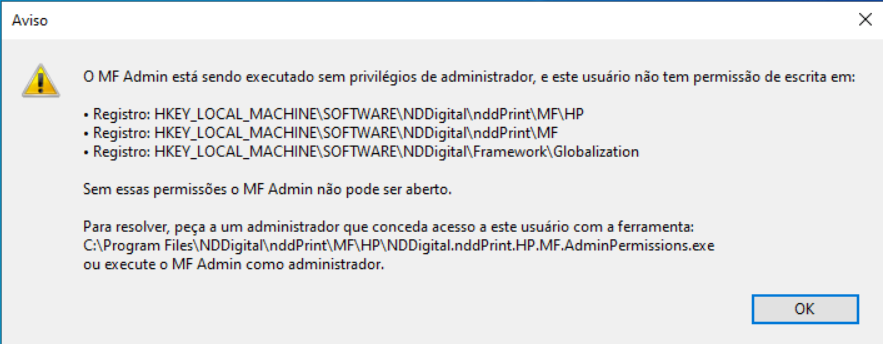
If a user without the necessary permissions attempts to open NDD Print MF HP (MF Admin), a warning will appear and the program will be closed.
Configure the NDD Print MF HP (MF Admin) shortcut
-
Right-click the NDD Print MF HP (MF Admin) shortcut and select Properties
-
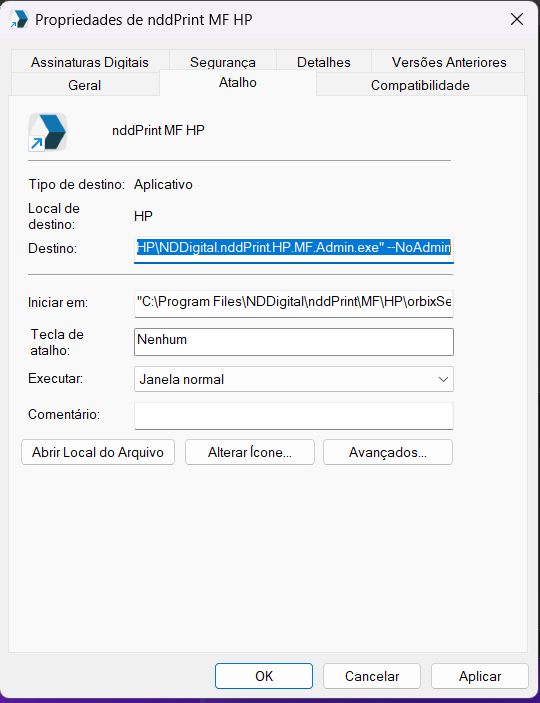
On the Shortcut tab, locate the Target field
-
After the executable's path, add the
--NoAdmin, parameter, as shown in the example:
"C:\Program Files\NDDigital\nddPrint\MF\HP\NDDigital.nddPrint.HP.MF.Admin --NoAdmin
-
Access the Compatibility tab
-
Uncheck the Run this program as an administrator option
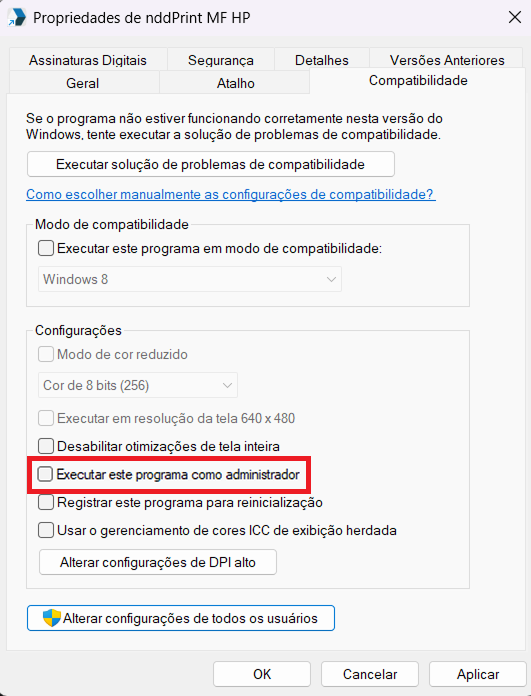
-
Click Apply, and then click OK.
After this configuration, the user will be able to open and operate the NDD Print MF HP (MF Admin) without administrative privileges.
Note:
Access without administrative permissions is limited. Users without these permissions will not be able to enable or disable the secure connection or change the server address when HTTPS is enabled.
To configure all available settings, we recommend using a user with Administrator permissions.