NDD Print MF HP allows you to configure HP readers centrally, eliminating the need to configure them individually.
With this feature, you can:
-
Set default card types for HP readers
-
Apply settings automatically to new printers
-
Use the settings during bulk imports via CSV
-
Update multiple printers simultaneously
Configuration
-
Open NDD Print MF HP
-
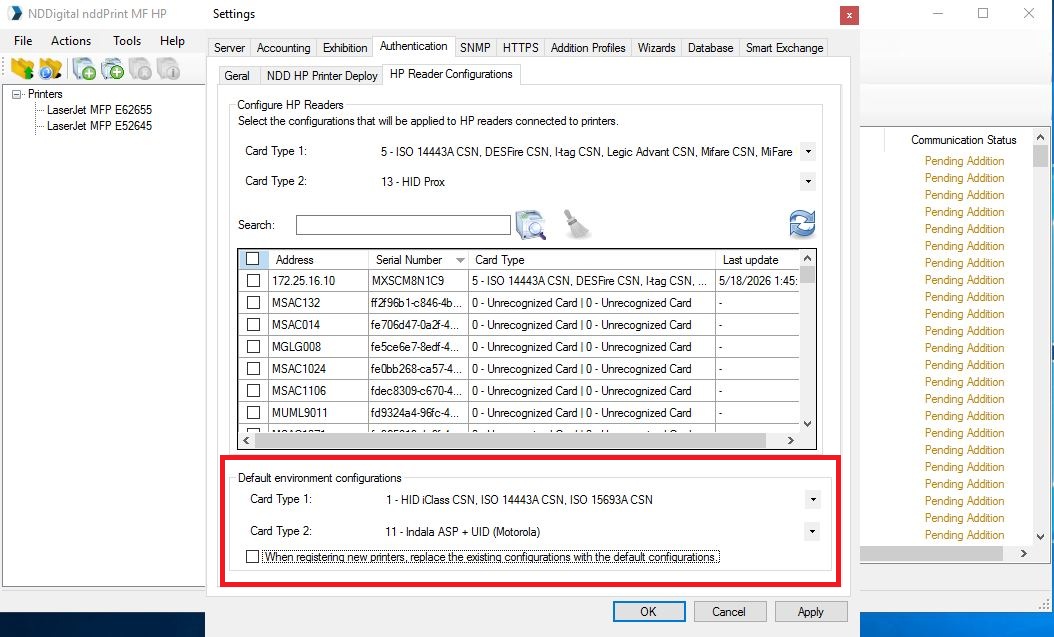
Access: Settings > Authentication > HP Reader Configuration
-
Under “Configure HP Readers,” locate:
-
Card Type 1
-
Card Type 2
-
Select the desired card type from each list
-
Click Apply and OK to save
You can configure the addition of card types individually, either by accessing the printer properties or during printer reconfiguration.
When you install the new version, the settings will be automatically migrated to the database, since this information is now stored there.

You can save the card type configuration for reuse when adding new printers in the future. You also have the option to update the configuration for all printers that have already been registered.
Configuration via the Single Addition Wizard
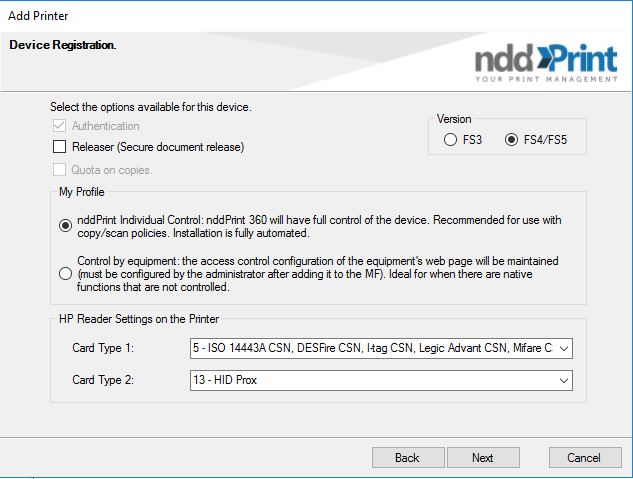
You can now select the card type when adding the printer. With authentication enabled, the system automatically applies the configured default card type.
-
Launch the printer addition wizard
-
Enable the authentication option
-
Select the desired card type
Bulk import and update via CSV
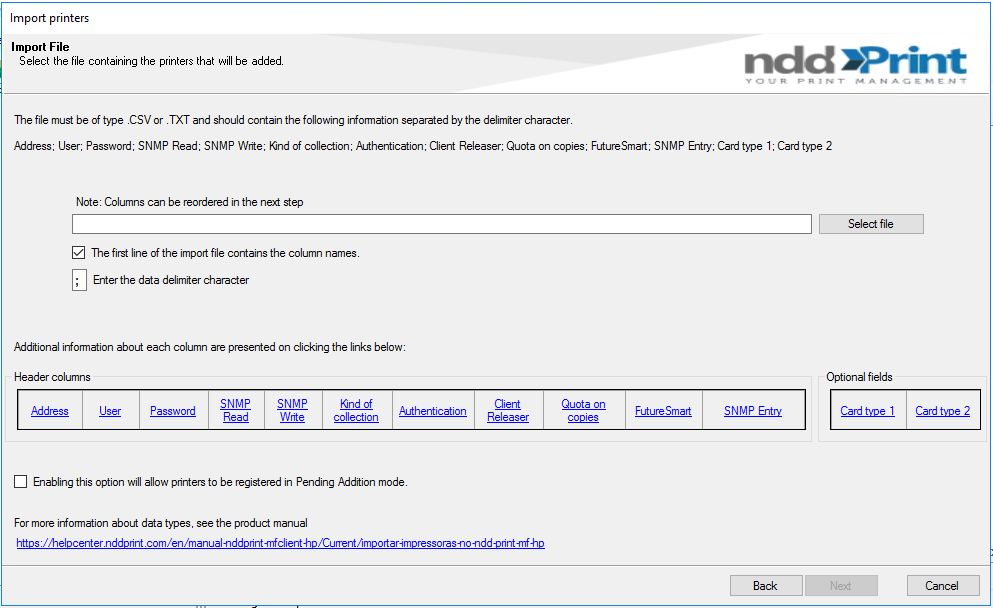
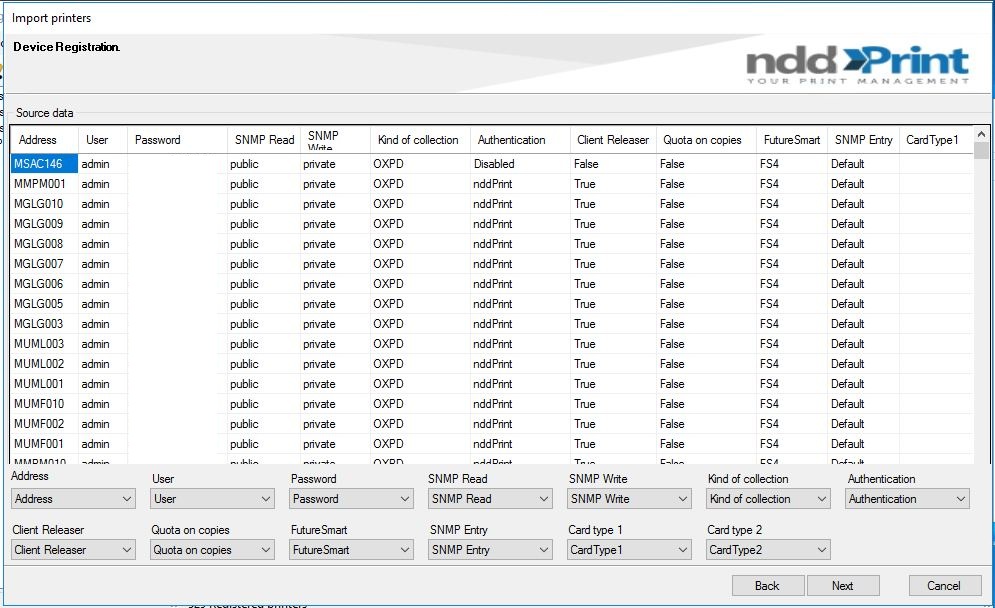
The import wizard now supports HP reader settings.
How to Import a CSV
-
Open the import wizard
-
Select the CSV file
-
Review the column mapping
-
Verify that CardType1 and CardType2 have been recognized correctly
-
Complete the import
The system remains compatible with older CSV files.