
In this article, you'll learn how to add printers for Secure Document Release.
Add the printer to Secure Release
Before you start
-
Make sure you carry out the Basic settings for NDD Print MF HP.
-
Make sure Configure authentication on NDD Print Host.
-
Make sure Add a printer on NDD Print Releaser.
-
Offline printers will only be configured when they are identified by NDD Print MF HP.
-
Under Quick actions, click on Add printer
-
Click on Next
-
Enter the device data
-
Select Check compatibility with embedded solutions and click Next
-
If the printer is not accessible at the moment, you can click Yes to register it offline.
-
Select Releaser (Secure document release)
-
Select the Future Smart version (FS3 or FS4/FS5) of your device
-
Select the device's control type:
|
Individual control NDD Print |
This profile gives you full control of the device, blocking all functions. We recommend using this profile when you have copy/scan policies. 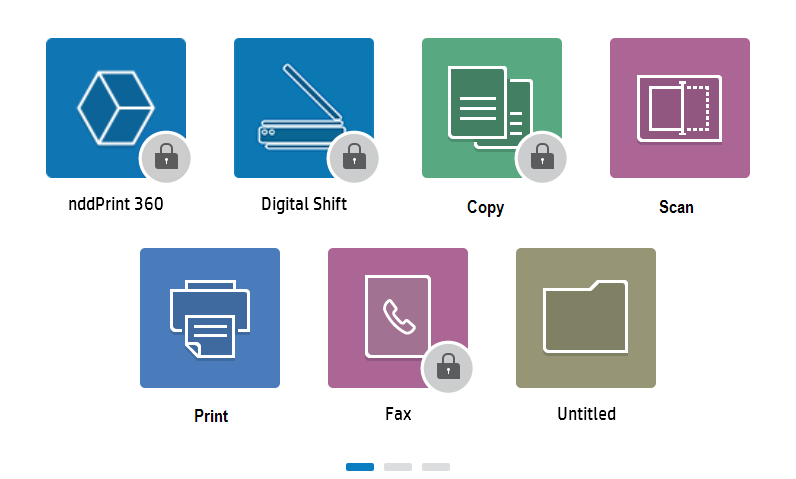
|
|---|---|
|
Control by equipment |
This profile allows the function lock to be configured as required. You must Configuring the Profile (access control) after adding the printer to NDD Print MF HP. 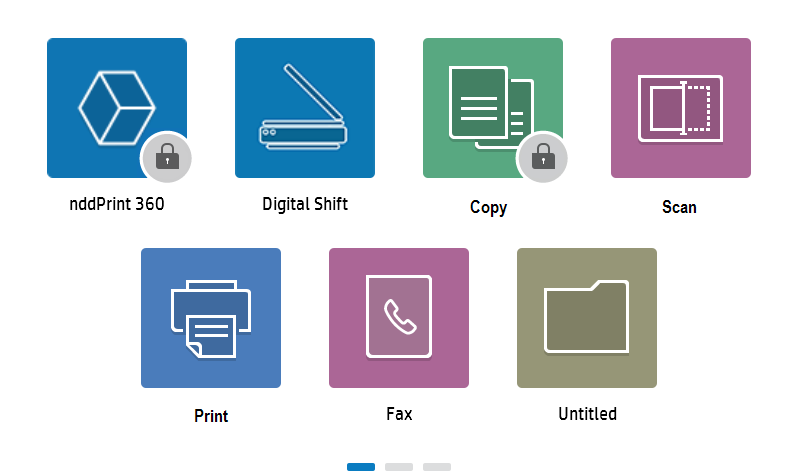
|
-
Wait for the wizard to finish adding the equipment and click Next and Finish
Create standard profiles and SNMP entries to optimize the addition of equipment.
Printer status
You can check the status of the printers that have been added to NDD Print MF HP, which allows you to identify any addition problems.
Success - The printer has been added and configured correctly.
Pending addition - The printer has been added without communication and its settings are pending.
Error - The printer has been added, but its settings have not been made. Click on details to find out more.