
In this article, you'll learn how to add printers for job accounting.
Printer Accounting methods
|
OXPd |
In this accounting method, NDD Print MF HP searches for information in the Quota and Statistics Services that provide the data on the jobs carried out. |
|---|---|
|
SNMP |
In this accounting method, NDD Print MF HP requests information on jobs carried out on the device that are located in its MIB. |
|
Web |
In this accounting method, NDD Print MF HP searches for job data via the HTTP or HTTPS protocol in predefined locations on the device's web interface. |
|
CSV (log backup) |
In this accounting method, NDD Print MF HP processes a CSV file that the device exports to a predefined folder. |
MFP 432 printers are only accounted for using the CSV (log backup) method.
Captured information
|
|
OXPd |
SNMP |
Log backup |
Web |
|---|---|---|---|---|
|
type |
Available |
Use standard value A4 |
Available |
Use standard value A4 |
|
User |
Available |
Available (native printer authentication) |
Available |
Available (native printer authentication) |
|
Duplex |
Available |
Accounted as Simplex |
Available |
Accounted as Simplex |
|
Color |
Available |
Accounted according to printer capacity |
Accounted according to printer capacity |
Accounted according to printer capacity |
Add the printer for accounting
Before you start
-
Make sure you carry out the Basic settings for NDD Print MF HP.
-
Perform a test print on new equipment for identification on the network.
-
Offline printers will only be configured when they are identified by NDD Print MF HP.
Step 1: Configure NDD Print MF HP
-
Open the NDD Print MF HP interface
-
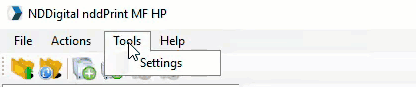
In the menu, click on Tools > Settings
-
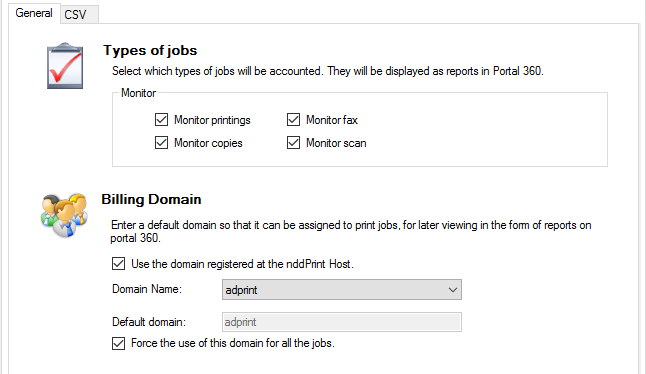
In the Accounting tab - Select the types of jobs you want to account for and configure the domain where the jobs will be registered
Step 2: Add printer
-
In Quick Actions, click on Add Printer

-
Click on Next
-
Enter the device data
-
Select the collection type according to your device's compatibility
-
If the printer is not accessible at the moment, you can click Yes to register it offline.
To configure CSV (Log Backup) accounting, select check Compatibility with embedded solutions and select None.
-
Click on Next
-
Wait for the wizard to finish adding the equipment and click Next and Finish
Create standard profiles and SNMP entries to optimize the addition of equipment.
-
Restart the printer
Printer status
You can check the status of the printers that have been added to NDD Print MF HP, which allows you to identify any addition problems.
Success - The printer has been added and configured correctly.
Pending addition - The printer has been added without communication and its settings are pending.
Error - The printer has been added, but its settings have not been made. Click on details to find out more.
Configure CSV (Log backup) accounting
Before you start
-
We recommend resetting the device to factory settings.
-
Make sure that the shared folder has been created on the server intended to receive the job log.
Step 1: Configure the printer
-
Access the device's web page
-
Go to Security > System security
-
Select the option Erase everything > Erase all content and settings
-
Click on Delete now
Step 2: Enable Work log
-
Access the device's web page
-
Go to Security > System log > Log configuration > Job log
-
Click on Activate
Step 3: Setting the system timeout
-
Access the device's web page
-
Go to Settings > Device configuration > System
-
Click on Configure
-
Uncheck the System timeout option
Step 4: Configure log backup
-
Access the device's web page
-
Go to Security > System log > Log configuration > Log backup
-
Log backup: check the Enable option
-
Schedule: choose the scheduling option and the time when the backup will be made
-
Protocol: select the SMB protocol
-
Server address: enter the server address to which the log will be sent
-
Server port: enter the port for communication (139 or 445)
-
Login name: enter the details of the user (name, password and confirm password) who will have access to the shared folder on the server. If there is no need to enter a user's details, check the Anonymous option
-
Domain: enter the address of the domain that will be used
-
Path: fill in this field as follows:
<shared_folder_name>\<equipment_serial>
-
Step 5: Configure NDD Print MF HP
-
Open the NDD Print MF HP interface
-
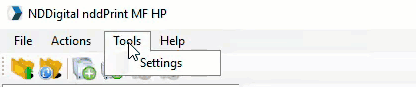
In the menu, click on Tools > Settings
-
Go to the Accounting > CSV tab
-
Server address: enter the address of the server where the log file is being saved
-
Port: select the desired port (139 or 445)
-
Domain: enter the address of the domain to be used
-
Login: enter the details of the user who will have access to the shared folder on the server
-
Password: enter the password of the user who will have access to the shared folder on the server
-
Confirm password: confirm the password of the user who will have access to the shared folder on the server
-
-
Path: Enter the name of the shared folder on the server where the log is being saved