
Retrieving logs from Canon equipment
Logs are essential for analyzing how the component works.
The purpose of this procedure is to enable log collection on equipment using a special management mode and a terminal connection (PuTTY).
-
This procedure allows you to access the equipment's advanced configurations
-
Avoid changing any parameters other than those specified
To access them, follow the steps below:
Access special management mode
-
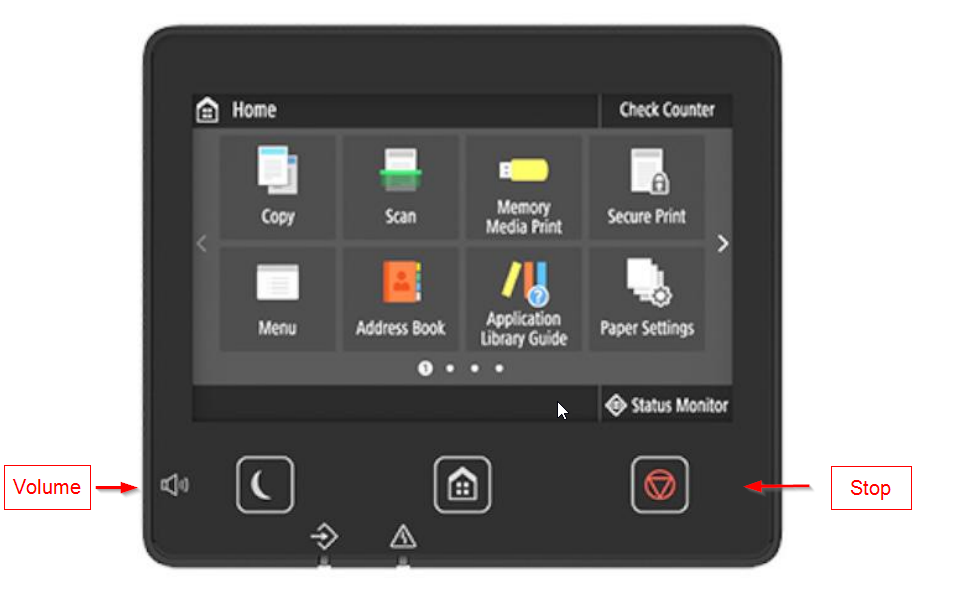
On the equipment's initial screen, access the main panel.
-
Press the following key sequence:
Volume → Stop → Stop → Stop → Stop → Stop → Volume
-
The equipment will enter special management mode.
Enter configuration codes
-
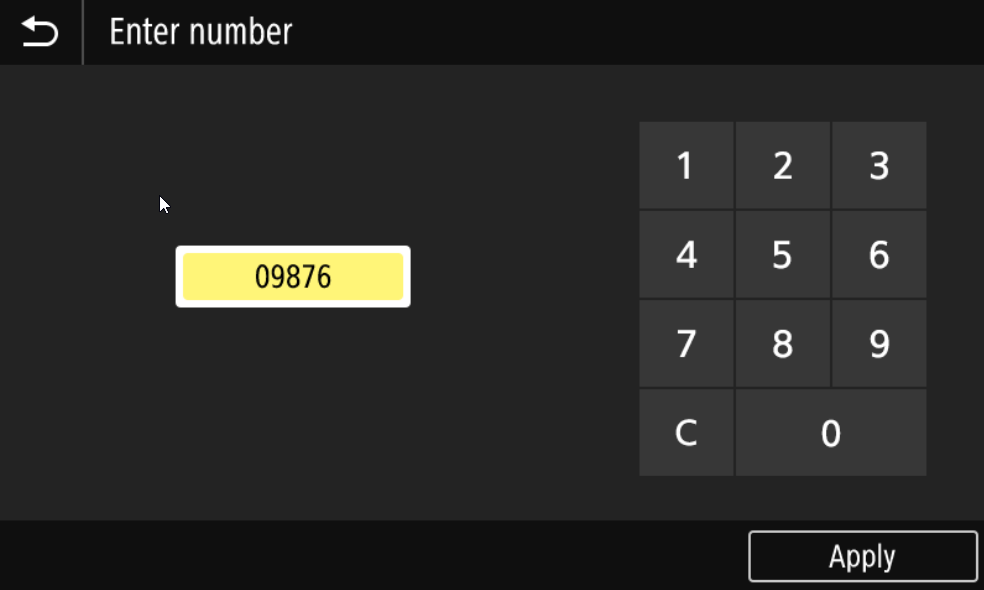
A screen for entering a code will appear.
-
Enter the code 09876:
-
Click “Apply.”
-
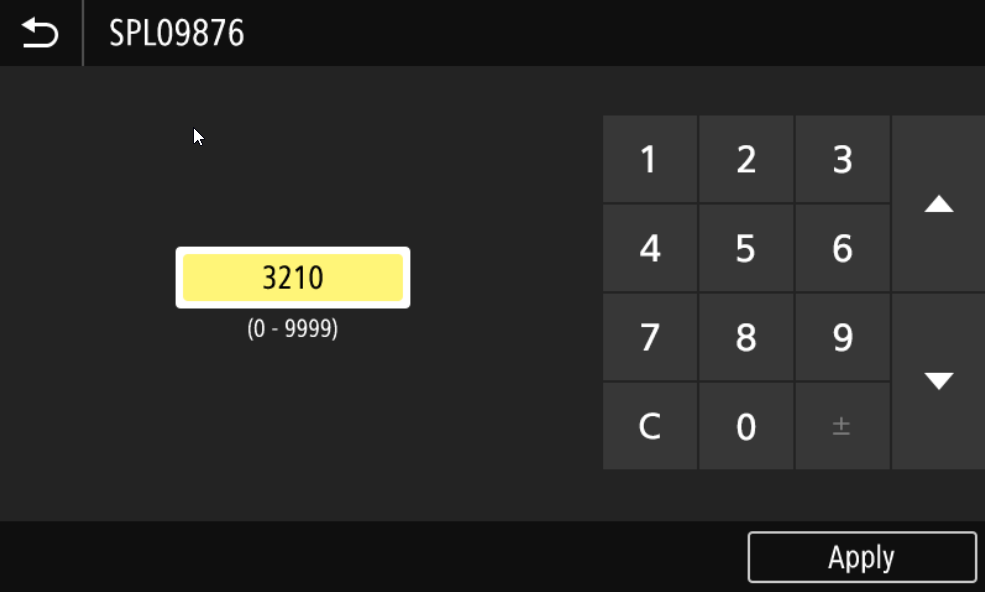
On the next screen, enter 3210:
-
Click “Apply” again.
As shown in the screens above, these codes allow you to access the equipment's internal parameters.
Restart the equipment
After entering the codes:
-
Restart the equipment to apply the configurations.
Configure log collection via PuTTY
Session settings
-
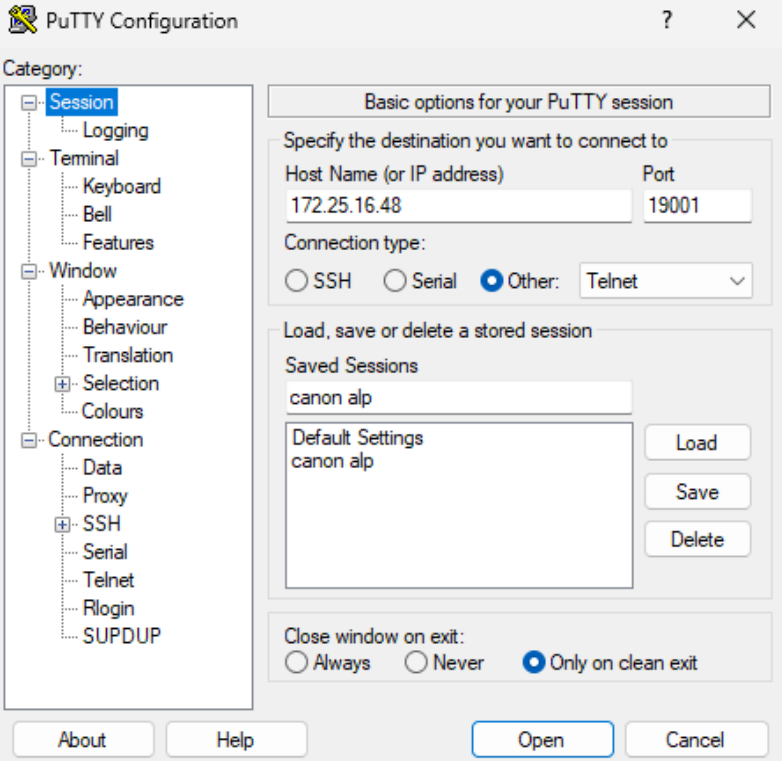
Open PuTTY.
-
In Session Configure:
-
Host Name (IP): Equipment IP address (e.g., 172.25.16.48)
-
Port: 19001
-
Connection type: Select Other and choose Telnet
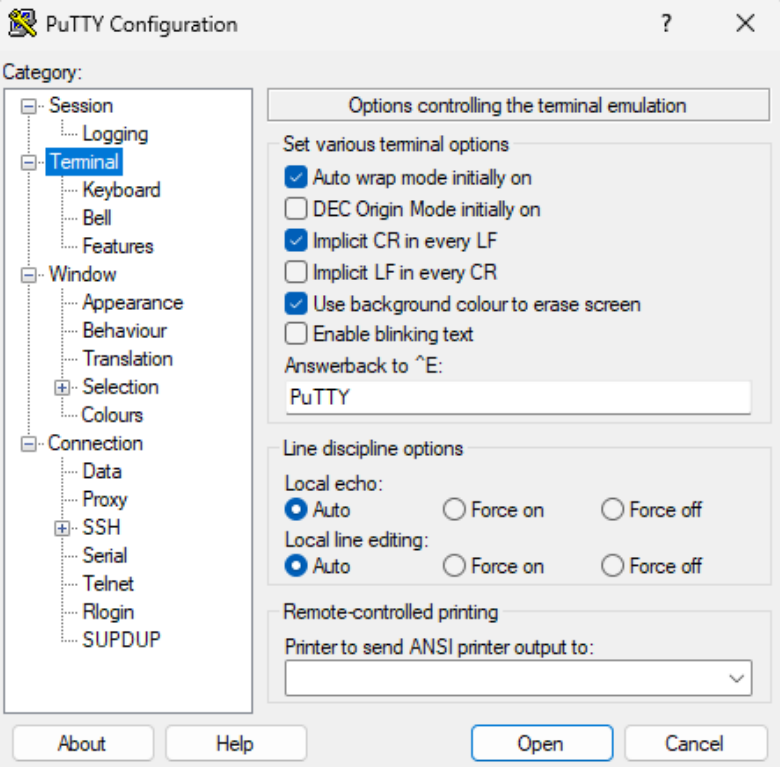
Terminal configurations
In the side menu:
-
Access Terminal
-
Select the options:
-
Auto wrap mode initially on
-
Implicit CR in every LF
-
Use background colour to erase screen
-
For Local echo and Local line editing, keep the setting as Auto
Start connection
-
Click Open
-
The connection to the equipment will begin
-
From this point on, the logs can be viewed/collected via the terminal