
Objective
To detail all the steps for operating the NDD Print MPS Closing Module. Please note that the Closing Module must be properly configured; to do so, refer to the Closing Module Configuration Guide.
Before You Begin
The Closing Module consists of 4 phases:
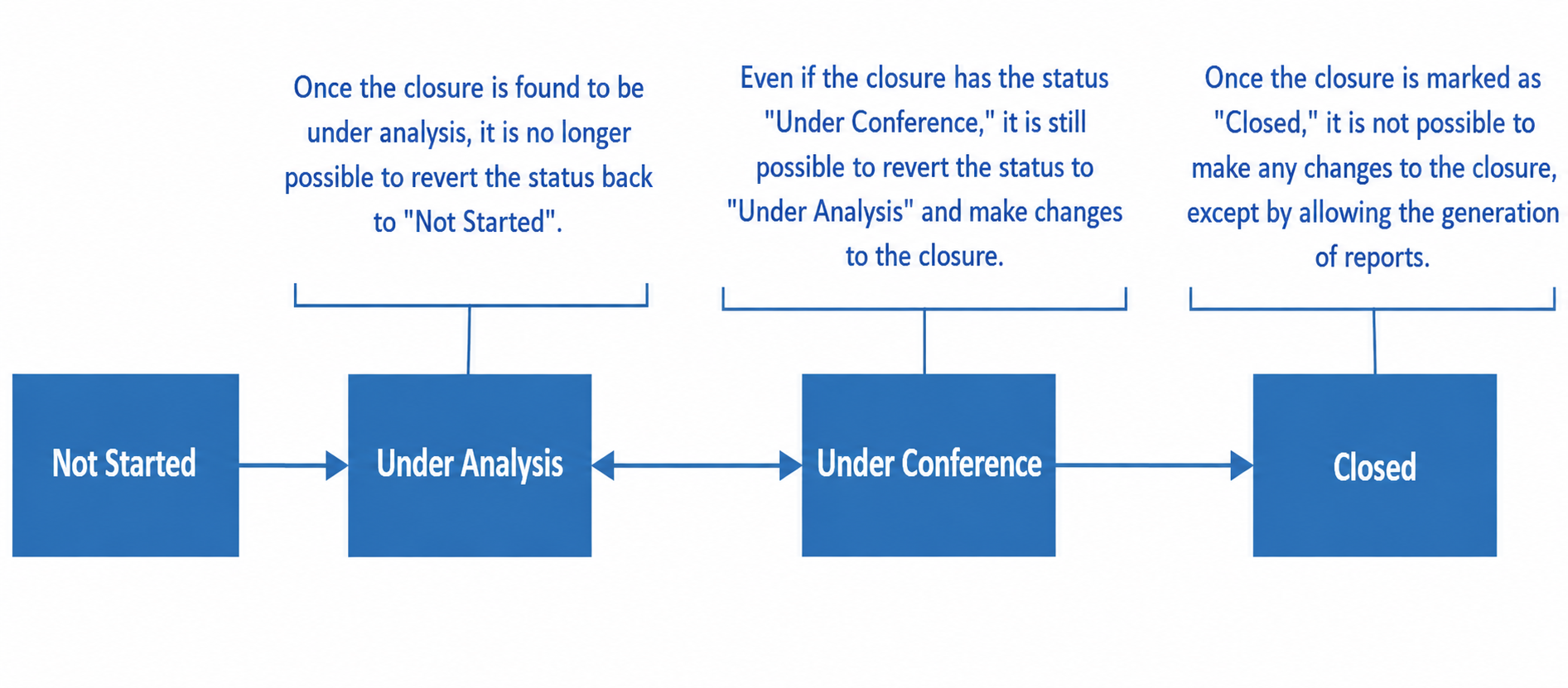
Start Closing
Assuming that the module and closing process are fully configured, the first closing will be prepared on the Closings screen, an option available under the Companies > Contracts > Properties tab.


You must have Manage Contracts permissions.
When the first closing is performed, a summary of that closing will be displayed, and its status will be set to Not Started; you will need to Recalculate to begin viewing the closing information:
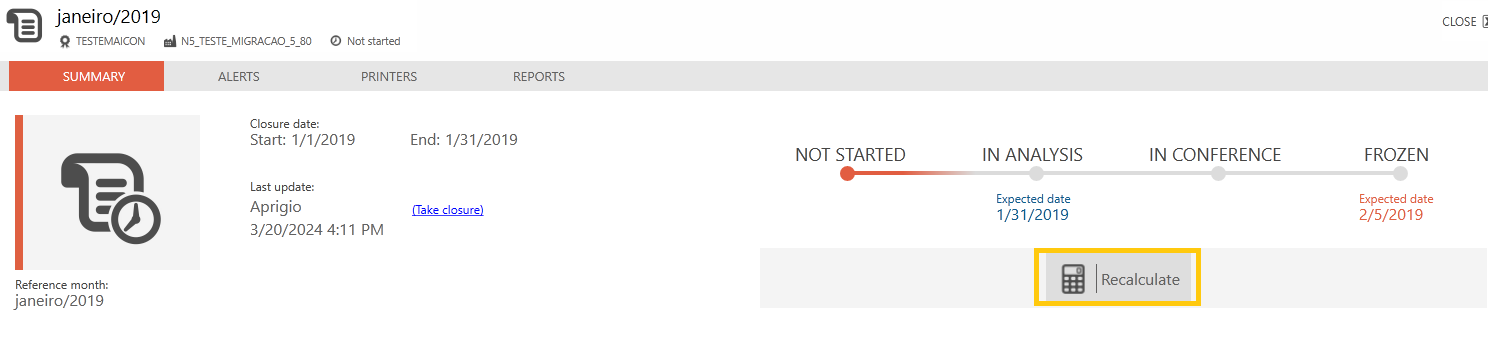
After that, the closing will change the status from Not Started to Under Review, already displaying a summary of the current closing, which is not yet official, as changes to rules or data that could affect its values are still allowed.
Once this status is reached, it is already possible to generate reports; however, only the Frozen closing report can be considered official.
Closing Analysis
This stage of the closing process is when all data validations and alerts are performed; these must be reviewed before proceeding to the next stage. At this stage, it is already possible to apply Fines or discounts.
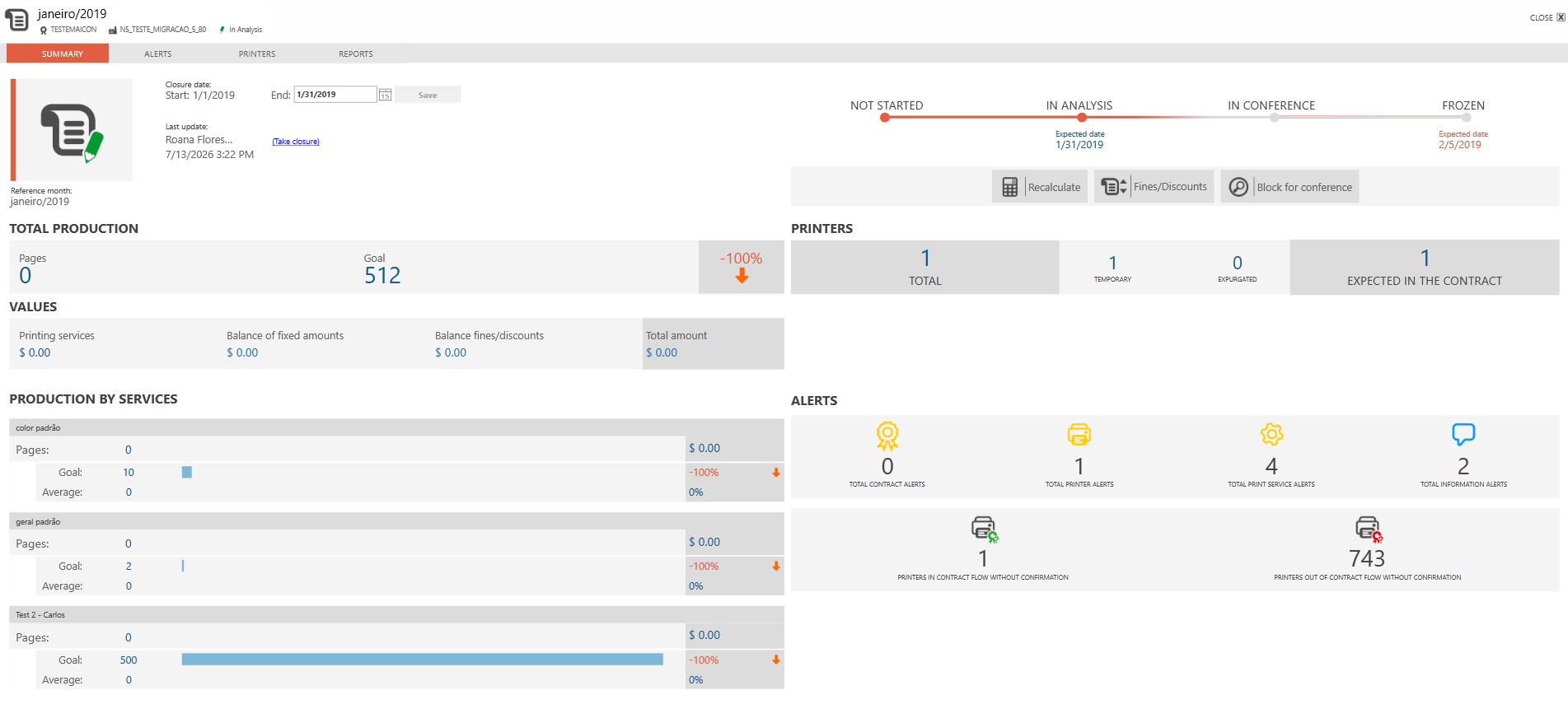
The Alerts tab will display all alerts that have been enabled or configured for this contract.

We recommend that all alerts be reviewed and analyzed, as they indicate potential issues that could directly affect the closing values.
Before proceeding to the next step, In Conference, you must confirm the values that were calculated at closing. To do this, go to the Printers tab:
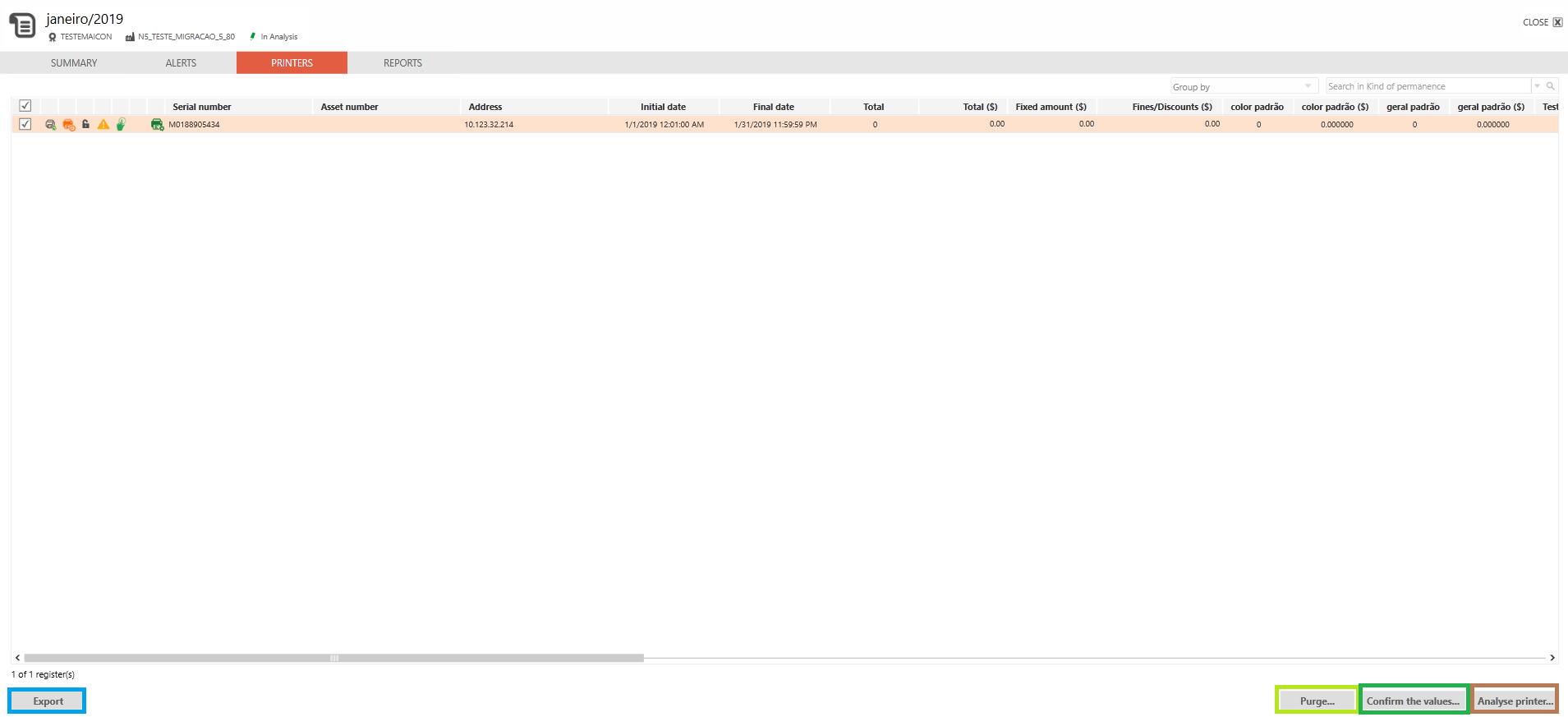
On this same screen, you can perform the following actions:
-
Export all data selected in the grid;
-
Confirm the values displayed in the closing;
-
Remove a printer from the closing; when you perform this action, the printer’s data will be confirmed, and if the option to not charge the fixed amount is checked, a discount will be applied to the printer’s current fixed cost in the closing;
-
Using the Analyze Printer option, you can manage all printer information in the closing.
Once the values have been confirmed, you can proceed to the In Conference stage:
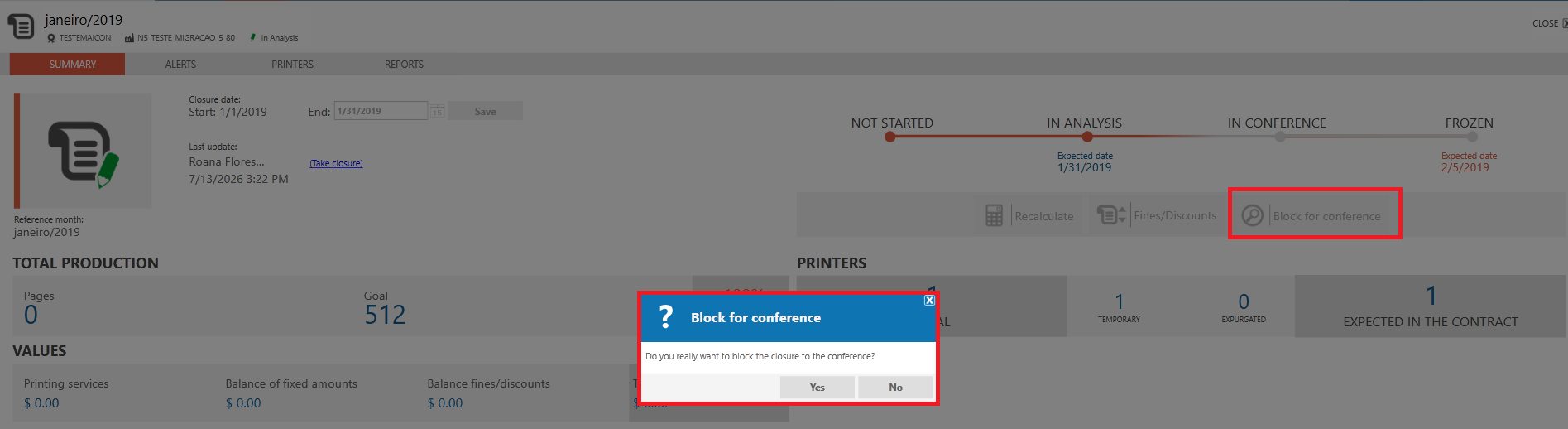
Closing in Review
In the In Conference status, it is assumed that all initial analysis of the closing has already been completed and that this closing is currently being validated for billing.

If you need to make any changes to this closing, you must unblock the values in order to return to the In analysis status:

Please note that if changes need to be made, you must unlock the previously confirmed values. To do so, simply go to the Printers tab > Confirm The Values > Unlock The Values:
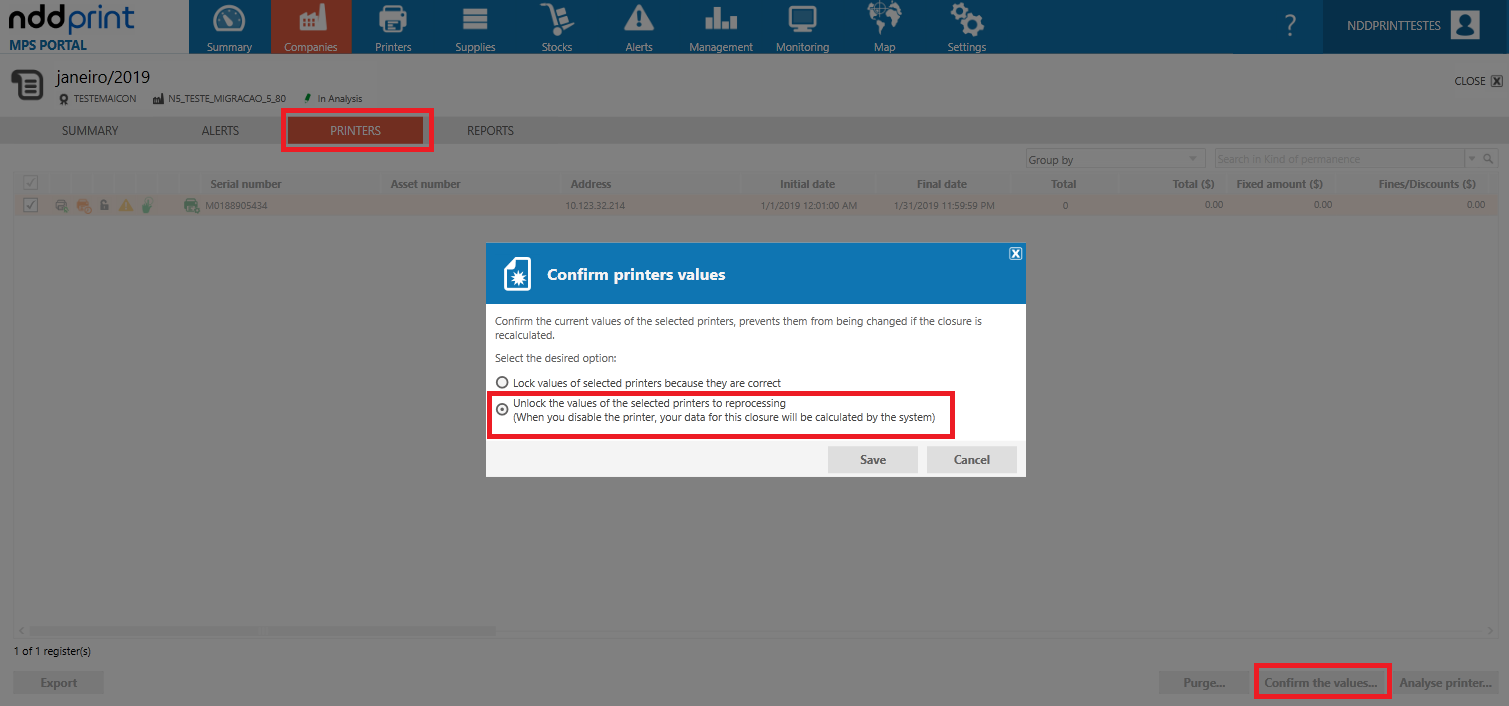
After the change, you must repeat the process of confirming values and blocking for verification.
Freeze Closing
You can only freeze the closing after it is In Conference:
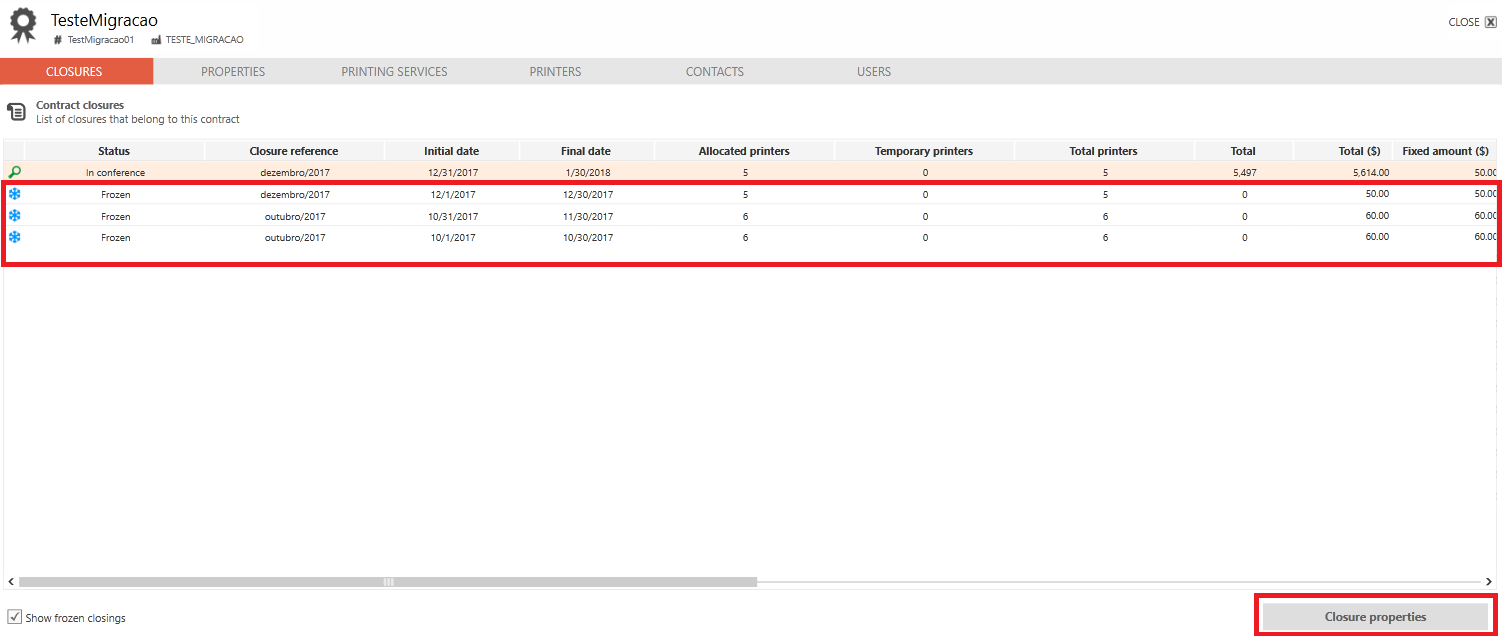
Unfreeze
There may be situations in which users mistakenly freeze the data for a closing, resulting in inconsistencies, or even before the correct time.
The Unfreeze action allows you to create a request to the system to undo the last frozen closing in the selected contract, thereby reactivating the closing for editing.
This action is audited by the system and can be used for both active and closed contracts.
When performing a de-freeze, the system removes the data and the most recent unfrozen closing, then removes the data from the most recent frozen closing, leaving it with the status In analysis.
It is necessary to request a recalculation of the contract that had an unfrozen close.
To request that a contract be unfrozen:
-
Access the Companies view
-
Click Contracts
-
Select the desired contract and click Unfreeze

-
The confirmation screen will appear. You must enter a comment explaining the reason why this contract is being unfrozen.
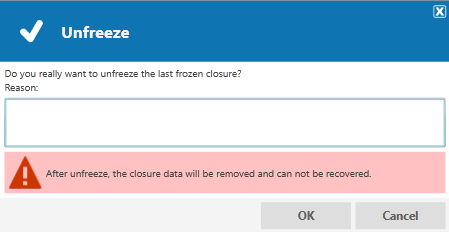
-
After entering your comment, click OK to request the unfreeze, or click Cancel to close the window and return to the contracts screen
-
Upon confirming the unfreeze request, one of the following two screens will appear:
-
Request successfully created. The contract is in the processing queue to be unfrozen.
-
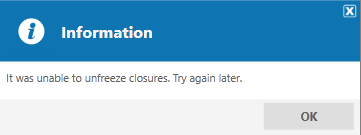
b. Failure. The contract is pending processing or does not have any frozen closings.
Reports
As detailed above, from the “in analysis” phase through to its completion (frozen), it is possible to generate reports; obviously, only reports generated from the completed (frozen) closing can be considered official.
To generate reports, go to: Closing > Closing Properties > Reports.
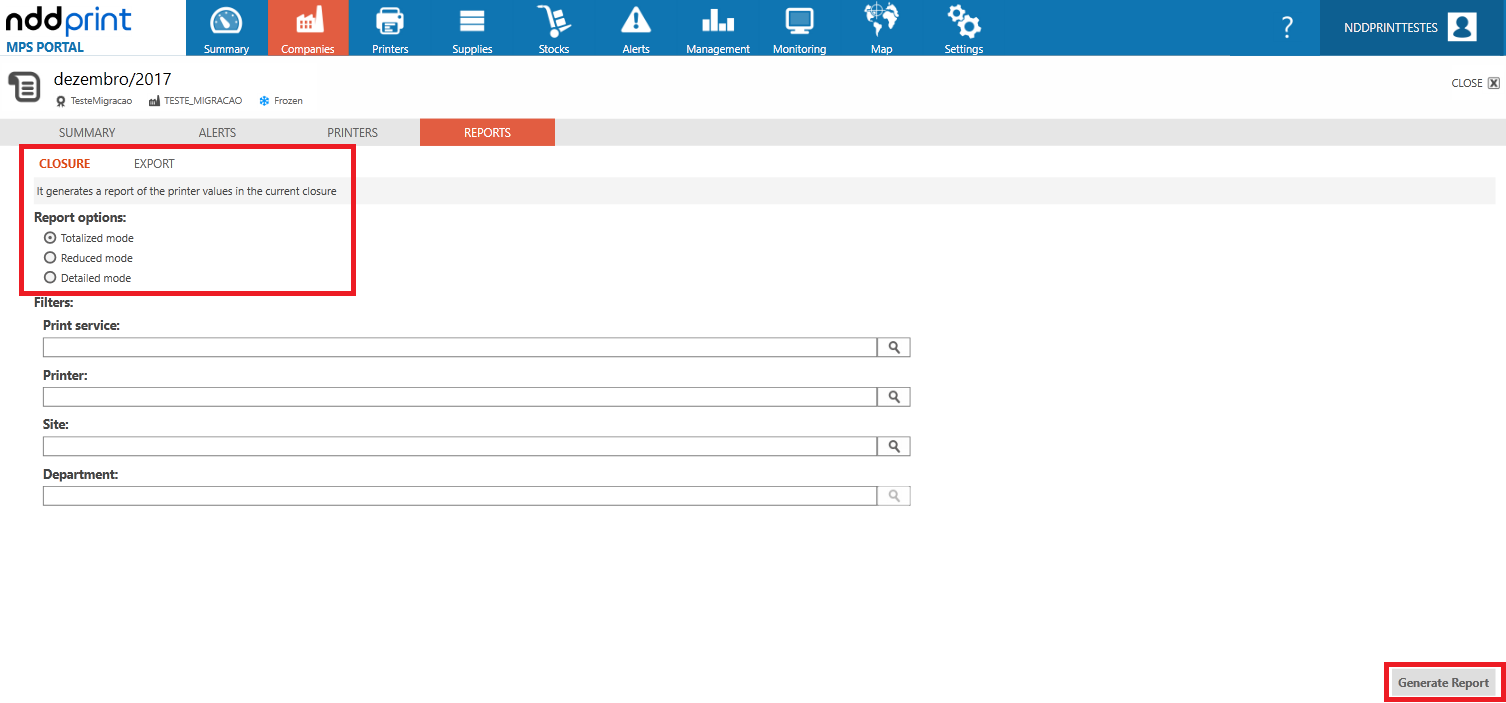
For more information about the reports, click here.
Permissions
To perform the operations described in this document, you must have permissions to manage contracts:
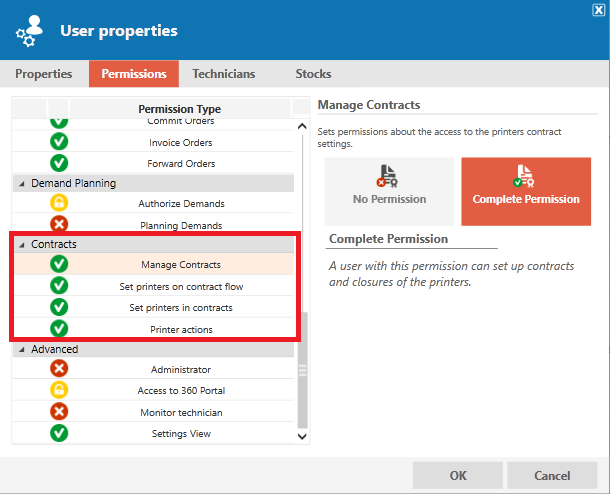
As we can see, the following options can be set for contract permissions:
-
Manage contracts: Top-level permission; without it, the other permissions (listed below) cannot be enabled:
-
Assign printers in the contract workflow: Allows you to enable or restrict a user's ability to add or remove printers from the contract workflow;
Contract Flow: In NDD Print MPS, “contract” and “contract flow” are distinct concepts; therefore, when a printer is included in a contract flow, it is not necessarily assigned to a contract. The “contract flow” option is used to link to replenishment rules.
-
Assign printers to a contract: Allows you to enable or restrict a user's ability to add or remove printers from the contract;
-
Printer Actions: Allows you to enable or restrict users from changing printer information.
This permission applies to all editable information in the system, such as: printer name, responsible person, operating mode, and others.
Please note that these permissions (detailed above) are directly related to the Company Monitoring permissions; in other words, the company permission rules will allow or restrict the viewing of printers in the specified company(ies) and/or sites:
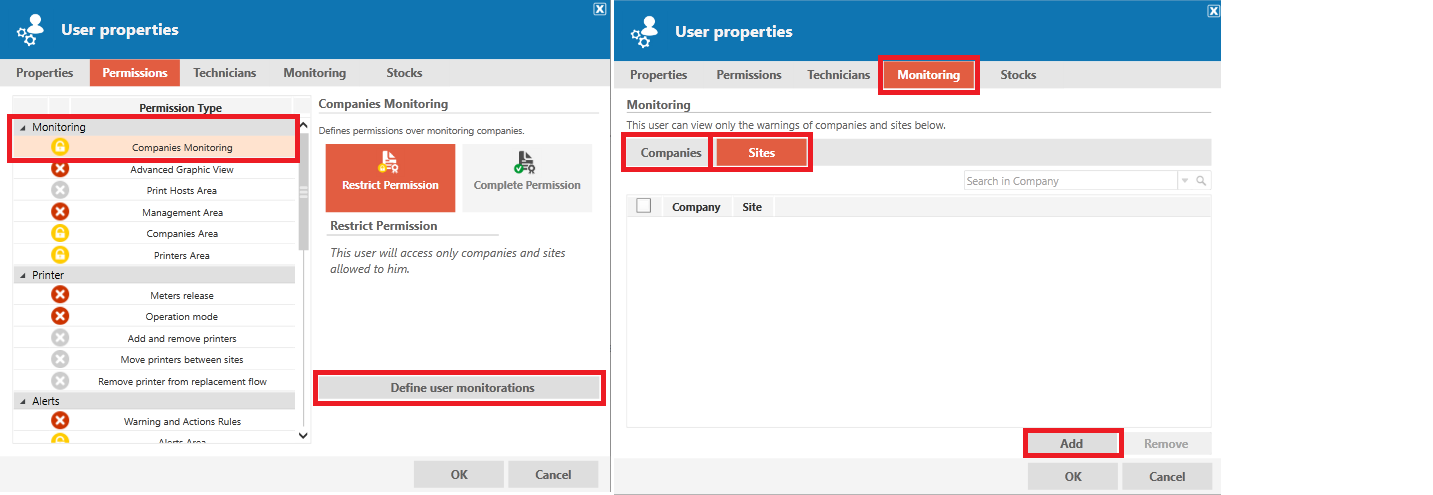
For changes to system permissions, contact the NDD Print MPS administrator at your company.
Frequently Asked Questions
Can I allow a customer to view closing reports?
This is not recommended, as permissions to access the closing module will allow the user access to all functions, not just the reports.
How do I configure allowances in the closing module?
Currently, there are no features available for managing allowances in this module. In this case, we recommend using the closing module to process alerts and capture the information that has already been managed. From there, you can export the data and process allowances/overages in the ERP or application of your choice.
The contract has expired; can I reactivate it?
Currently, no. In this scenario, we recommend creating a new contract with the new term, leaving the “expired” one as historical data.
The closing volume is much higher than normal; what could be causing this?
A common situation is when the previous closing is “frozen” for one or more printers with the meter set to zero (0); in this case, the next closing will add this meter value (0) to the current meter value.
Please note that while this is the most common scenario, it is not the only one; therefore, we always recommend performing an analysis of the printer data.