
Objective
Information and step-by-step instructions for operating the system at the event level. If you have any questions regarding configuration, please refer to the Event Module Configuration Guide.
Before You Begin
The items in the system related to event management are:
-
Pending Events.
-
Events Waiting solution.
-
Ignored Events.
-
Frequently Asked Questions;
Event Types
For system operation, it is first necessary to understand the types of events available in NDD Print MPS, which are:
-
System events: These are events generated based on system information—in this case, NDD Print MPS. In other words, this type of event is not reported by the printer; rather, NDD Print MPS itself generates the event based on the settings (detailed below).
-
Printer events: These are events generated by the printer itself. Within NDD Print MPS, they are categorized into basic events and advanced events, which relate to more specific printer issues.
-
Manual events: Events opened manually, that is, by a user who may be accessing either the NDD Print MPS portal or the service portal.
Pending Events
The Pending tab displays events that are currently open. Events remain on this tab until they are marked as Waiting solution or Ignored by a user, or until they are closed.
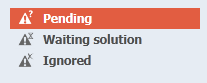
Actions and Handling of Pending Events
When you select the event in question in the Event Grid, the available actions for that event will be displayed. These are:
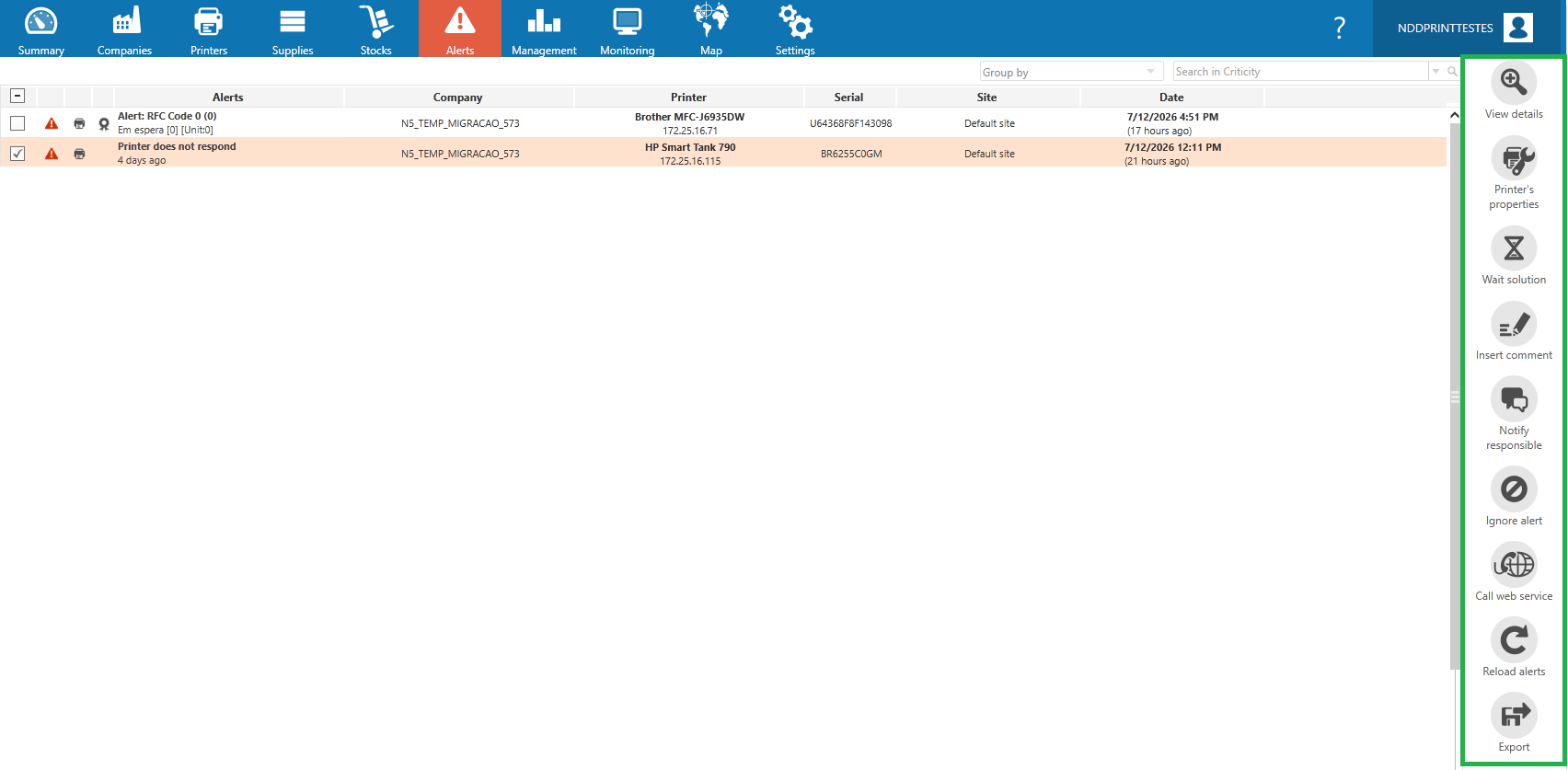

You can view the details of each event on the MPS Portal. The event details screen displays information such as: the date of the event, the date of the last update, the location of the company and/or the site and printer where the event occurred, the users responsible for this event, and the history, which contains all actions previously taken regarding the event in question.
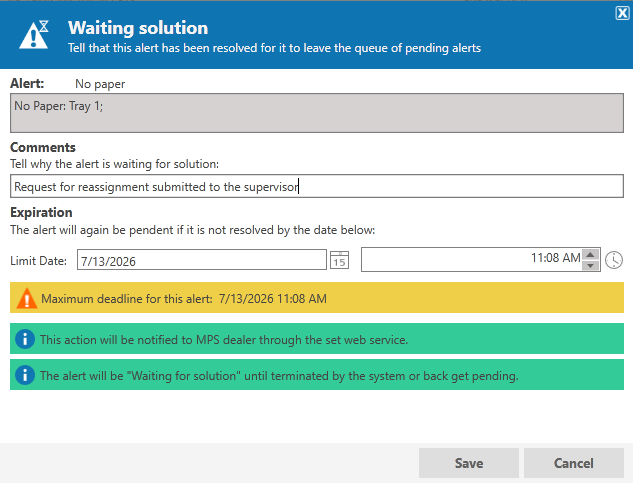
A Pending event can be marked by the user as “Waiting Solution,” indicating that steps have already been taken to resolve it and removing this event from the pending list. When this option is selected, the following screen will appear:
-
The reason the event is “Waiting solution” is that the comment entered is available for reading in the event history and in the event report.
-
Expiration date for the event: If the event is not resolved by the entered deadline, it will automatically return to the ‘Pending’ tab and be removed from the “Waiting solution” tab.
Users can add comments to all events. These comments are used to record important information and details about the related event. Any specific information can be added and will be stored in the event history, so other system users will also be able to view this information.
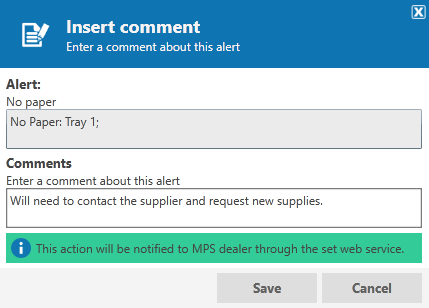
The comment you enter will be available for reading in the event history and in the event report.

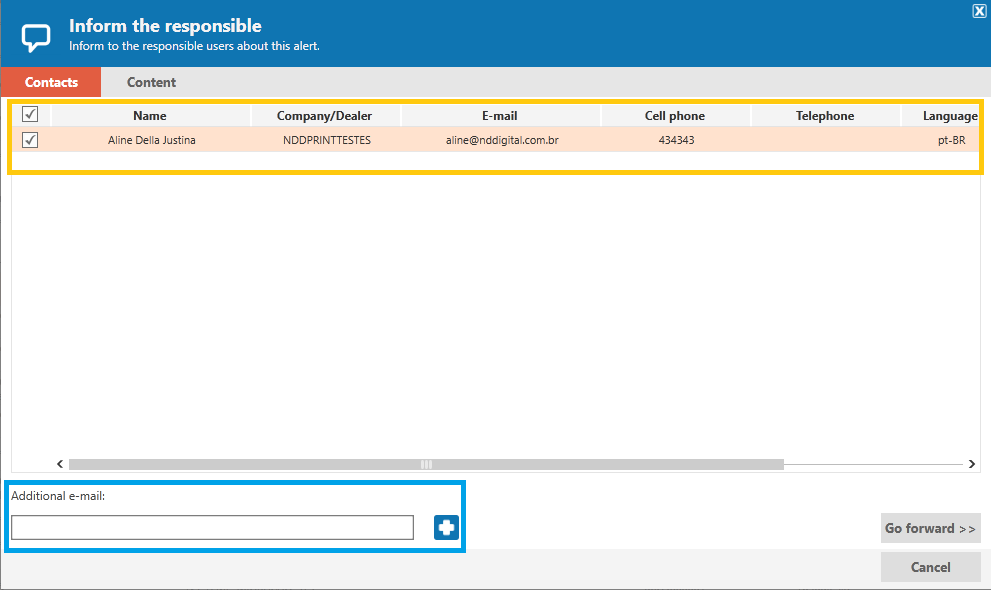
Users, administrators, technical supervisors, in-house technicians, and external technicians can be notified by email when events occur. This notification can be sent automatically by the system and/or manually by another user. Manual notifications are sent using the “Notify Responsible” option.
Selecting this option will display an interface listing the users responsible for this event (for more details on permissions, see the event configuration guide):
-
Select the user from the predefined list to receive the alert email.
-
To send additional emails to users who are not registered on the MPS portal, simply enter the email address in the Additional Email field and click the icon; once added, the email address will appear in the list.
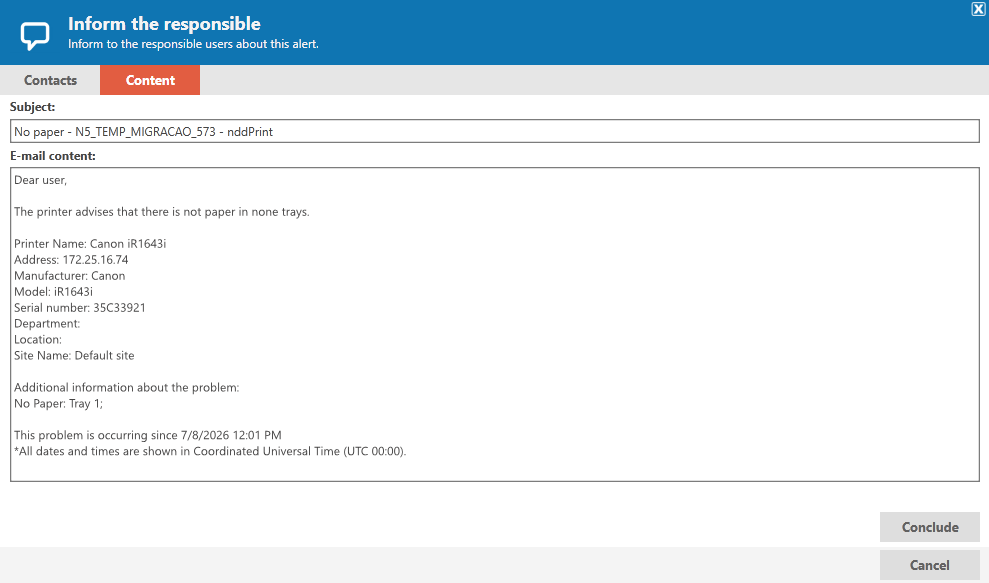
When you click “Go forward,” the Content tab will appear, where you can view and edit the email content (if necessary):

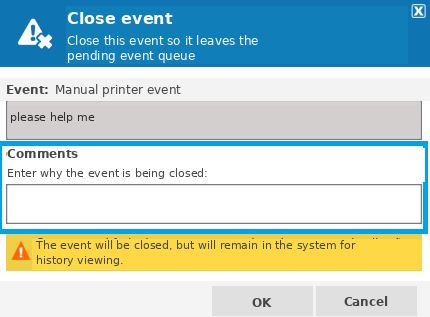
In this option, you must specify the reason why the event is being closed; the comment you enter will be available for reading in the event history and in the event report.
Available only in Manual Events.

When you mark the event as ignored, it will be moved from the Pending tab to the Ignored tab. The event will remain in the Ignored tab until it is resolved or reopened by the user.
Available only in Automatic Events.
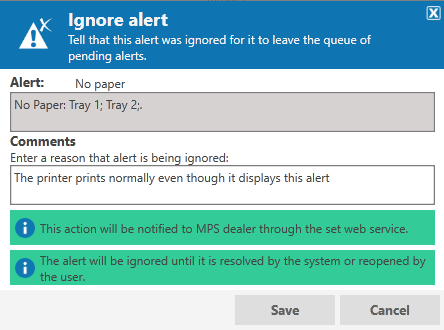
In this option, you must specify the reason why the event is being ignored; the comment you enter will be available for reading in the event history and in the event report.
Events Waiting Solution
The Waiting Solution tab displays events marked as resolved by a user but still awaiting final closure by the system.
These events remain on this list until they are closed; however, if the system does not detect that the event has actually been resolved, it will be reopened at the expiration time specified by the user and will return to the Pending list. The expiration time cannot be longer than the time configured in the alert rule for the event in question (see the configuration manual for details on configuring alert rules).
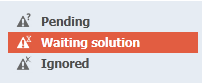
Actions and Treatments for Events Waiting Solution
With the exception of the “Reopen Alert” action, the rest of the actions work the same way as described in the previous section: View Details, Insert Comment, and Notify Responsible.
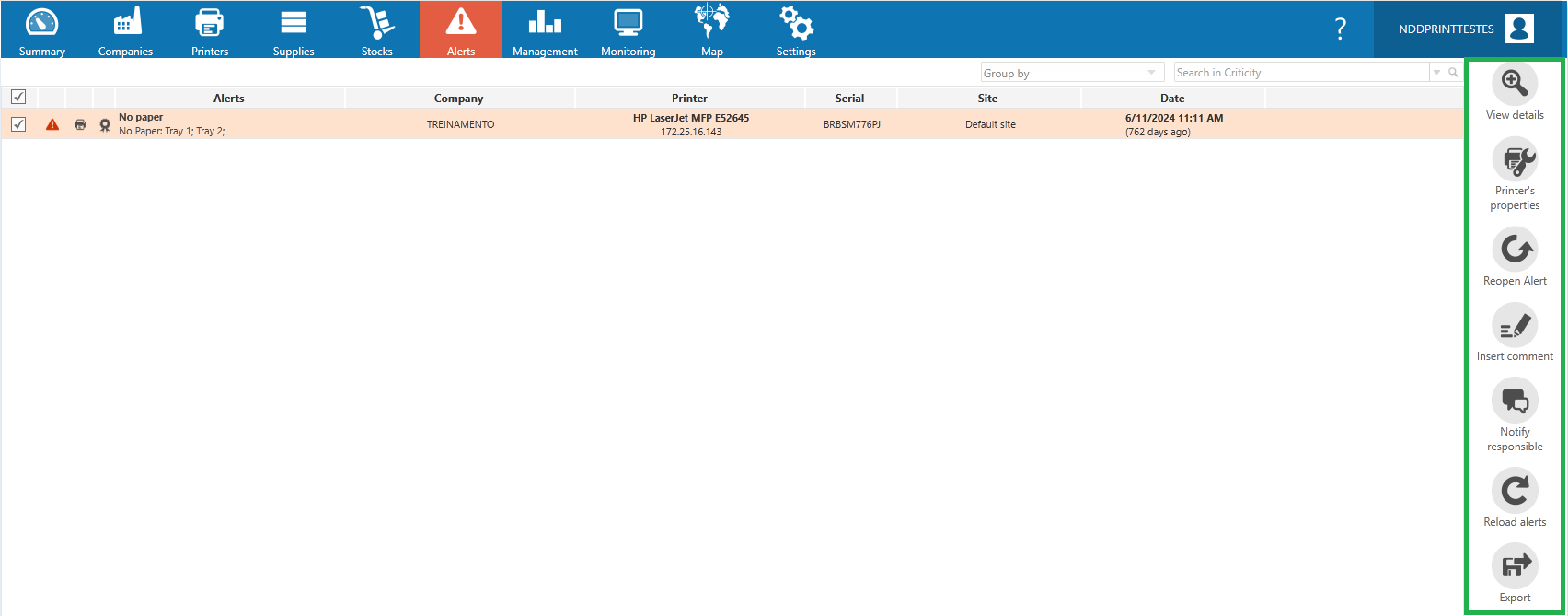

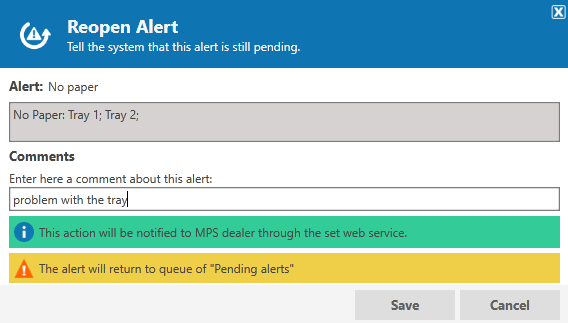
The user can reopen an event that is in the Waiting Solution status before the system does so, causing the event to return to the pending list. This may happen, for example, if the solution previously implemented was not actually effective and further action related to the event is necessary. When the user selects the event and clicks Reopen, the following interface will appear:
-
In this option, you must specify the reason why the event is being marked as “Pending” again; the comment you enter will be available for reading in the event history and in the event report.
Ignored Events
The Ignored tab displays events marked as “Ignored” by a user. These events do not generate any automatic reopening actions or email notifications. Ignored events will only be removed from the list when they are closed by the system or reopened by the user.
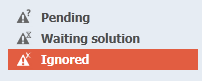
Events can be ignored, for example, in the case of printers that generate unnecessary alerts that do not interfere with the normal operation of this equipment.
You can only ignore automatic events.
The actions available for Ignored events are Reopen Alert, View Details, and Insert Comment. These actions work the same way as described earlier; selecting Reopen Event for an Ignored Alert moves the event back to Pending.
Reports
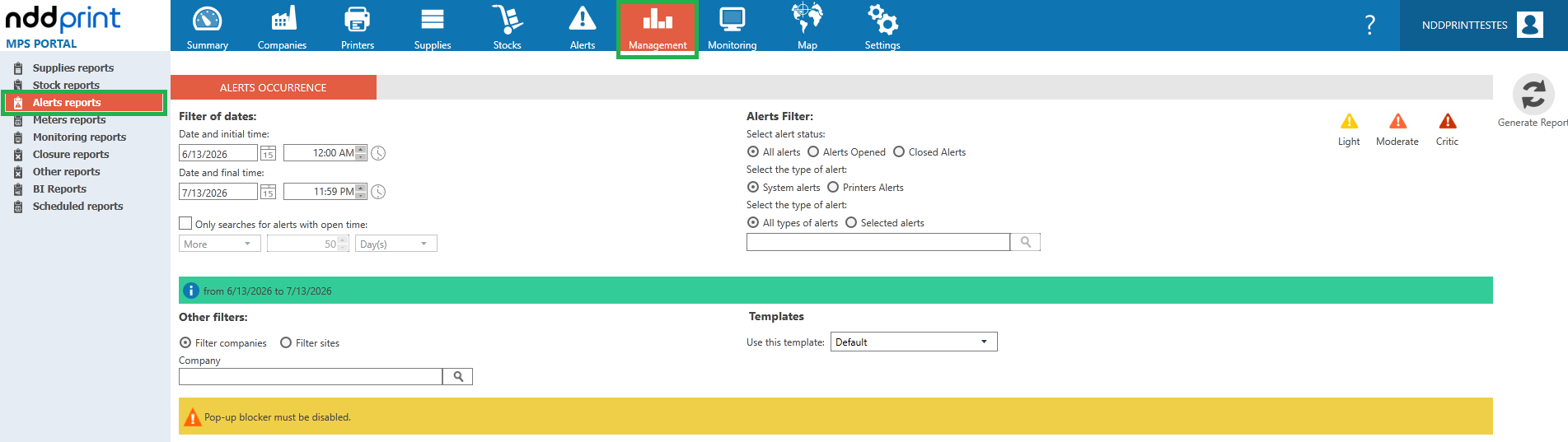
Event data, history, and details can be found in the Alerts report, located on the Management tab in MPS. The report offers several filter options.
Frequently Asked Questions
Can all users take actions on events?
Only users with full permission for the Events Area rule or Administrator permission.