This tutorial explains how to migrate printers from one contract to another while preserving the equipment history and avoiding any impact on the billing history.
Change the end date of the old contract
-
Access the old contract
-
Change the end date of the last billing cycle to a date prior to the initial date of the new contract
-
Save the change
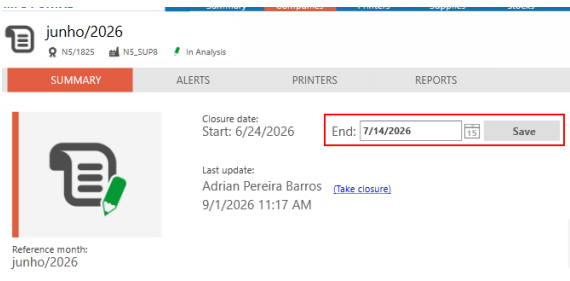
The final date of the old contract must be set to a date one day prior to the initial date of the new contract.
Example: If the new contract begins on July 15, 2026, the old contract must end on July 14, 2026.
-
After saving the date, perform the following actions:
-
recalculate the closing
-
block the printer values
-
block the closing for verification
-
freeze the closing
-
This procedure ensures that the equipment data is retained in the current closing and prevents any impact on the billing history.
Remove the printers from the old contract
-
Access the properties of the old contract
-
Go to the Printers tab
-
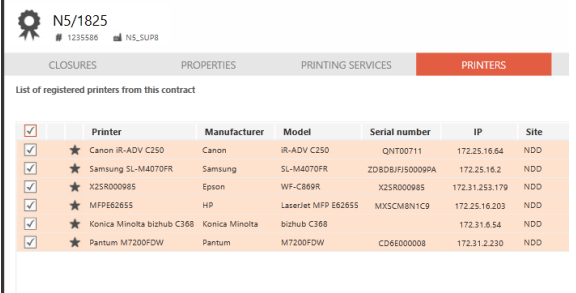
Select the printers to be migrated
-
Click Remove from contract

-
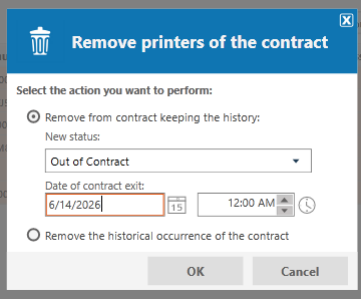
On the screen that appears, select the option Remove from contract while retaining the history
-
In the Contract End Date field, enter the same date you used in the previous step.
Create a new contract
-
Create a new contract
-
Enter the initial date for the new contract
-
Fill in the rest of the required information
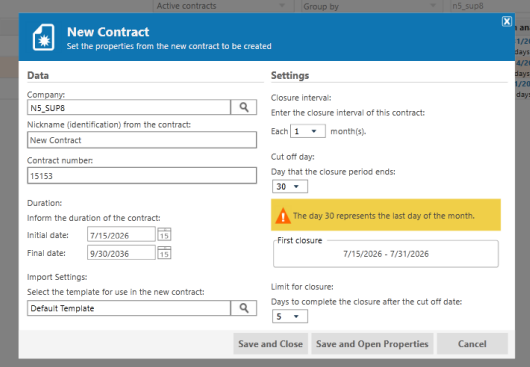
If necessary, use the old contract as a model to import the configurations for the new contract.
Add the printers to the new contract
-
Access the properties of the new contract
-
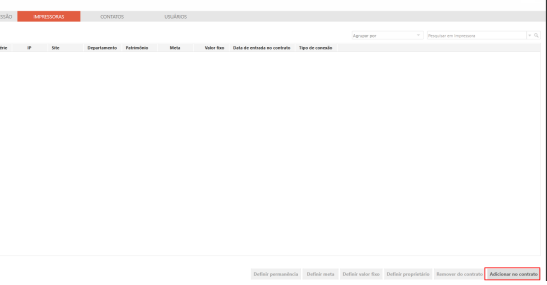
Go to the Printers tab
-
Click Add to Contract
-
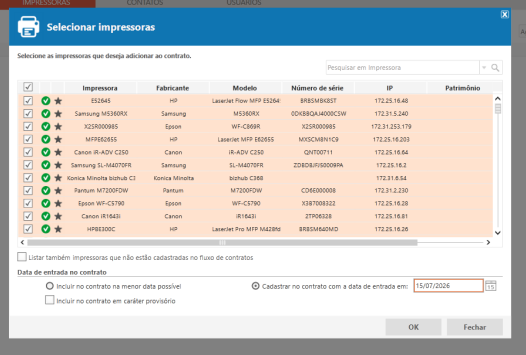
Select the migrated printers
-
Select the option Add to the contract with the initial start date and enter the initial start date of the new contract
Assign the calculation rule to the printers
-
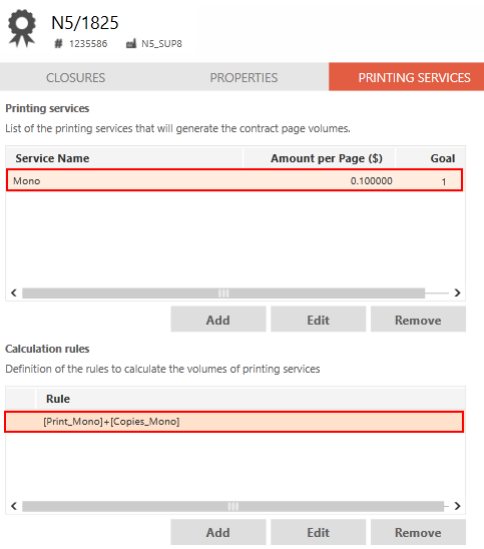
In the properties of the new contract, access the Printing Services tab
-
Select the desired printing service and calculation rule
-
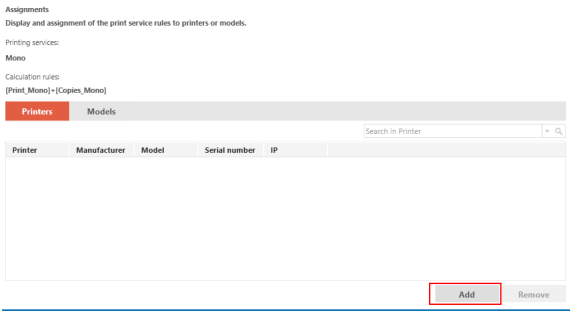
In the Assignments section, click Add
-
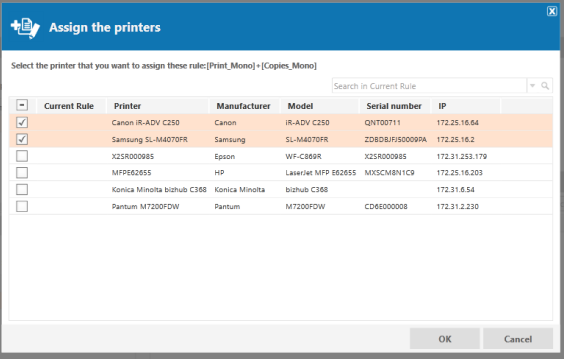
Select the printers associated with the rule.