
In this article, you will learn how to configure USB printer monitoring in NDD Print MPS.
Enable USB monitoring by NDD Print Host
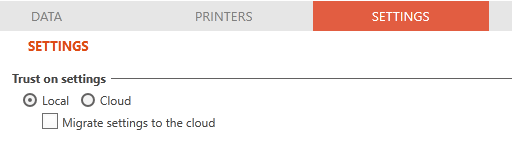
This setting is only available for NDD Print Hosts with trust in Cloud settings:
-
Go to the Monitoring view
-
Click on the Print Hosts tab
-
Click Load
-
Select the NDD Print Host you want to enable monitoring for from the list
-
Click on Properties
-
Go to the Settings > Monitoring tab
-
Click on Enable USB counter
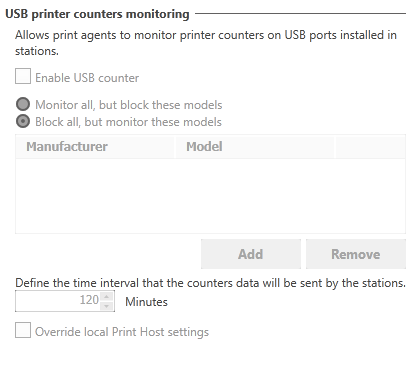
Configure the manufacturers and models for USB monitoring using the options:
-
Monitor all, but block these models
-
Block all, but monitor these models
Activate monitoring by company
-
Go to the Monitoring view
-
Click on the Print Hosts tab
-
Click on Load
-
Select the NDD Print Host of the company you want to enable monitoring for from the list
-
Click on Settings by company
-
Click OK
-
Select Yes to enable monitoring
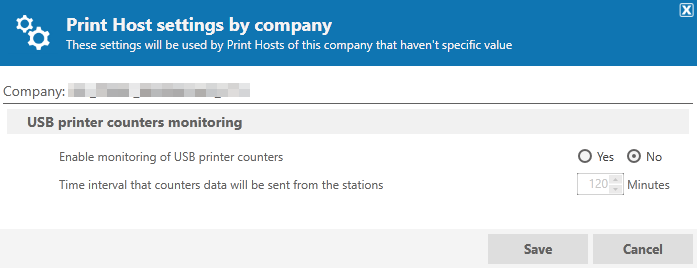
This setting will enable USB monitoring on all NDD Print Hosts in the company that do not have the setting enabled.