
Add
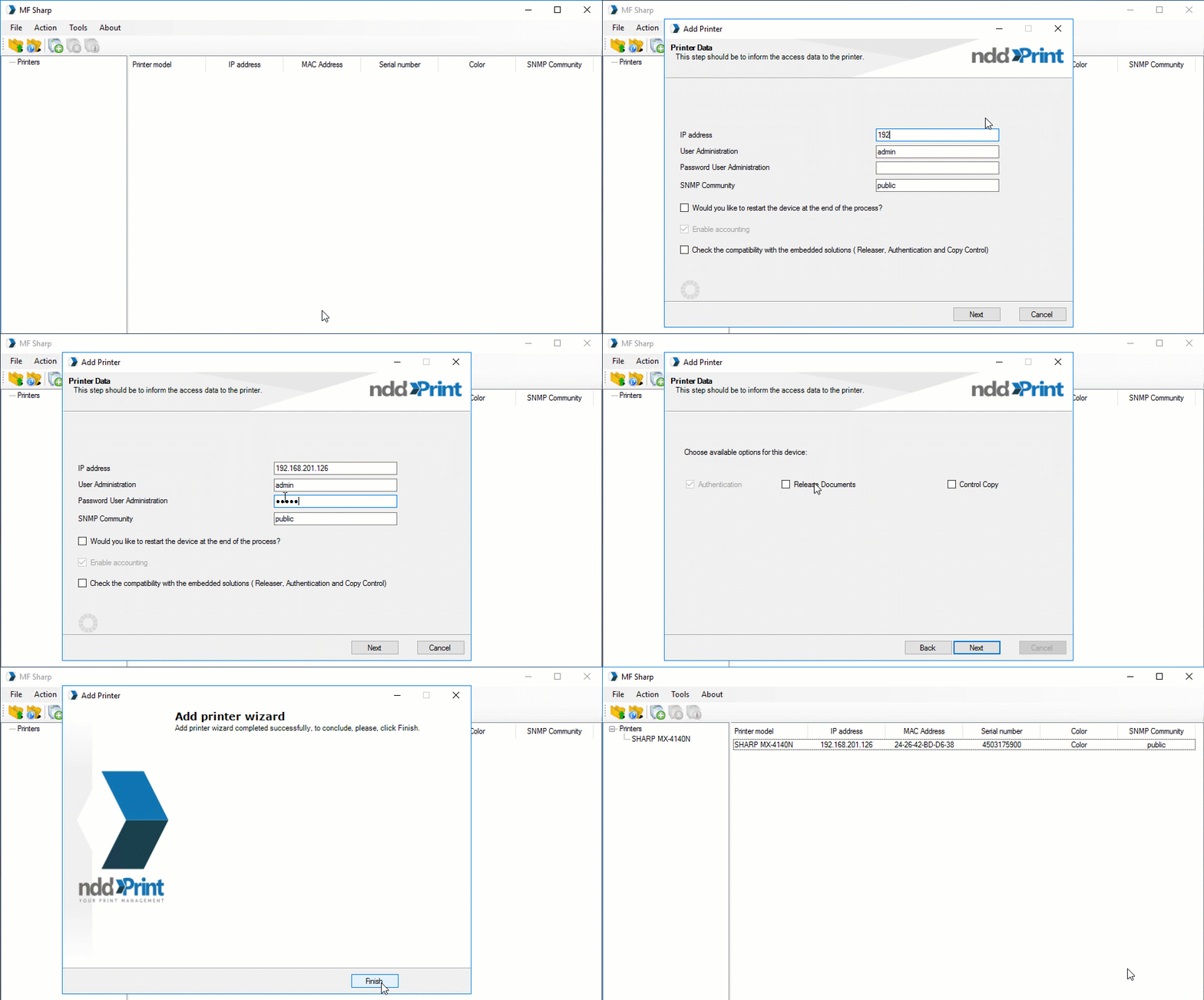
To add a printer > menu Action > option Add
-
The wizard interface for adding printer will be displayed. Click
Next to proceed;
-
Enter the equipment data:
-
IP Address or Printer Name;
-
User Administration;
-
User Administration Password;
-
SNMP Community: select the configured SNMP input (default: Public).
-
If you want to automatically restart the printer after adding the printer in the MF Sharp, select the "
Would you like to restart the machine at the end of the process?";
-
From here, we'll bring some configuration examples according to the scenarios:
-
After configuring the settings click
Next;
-
The equipment registration interface will be shown, displaying the equipment addition progress (Action > Status > Message) along with its settings. Wait a few moments for the process to complete;
-
Click
Finish to finish adding equipment.
Remove
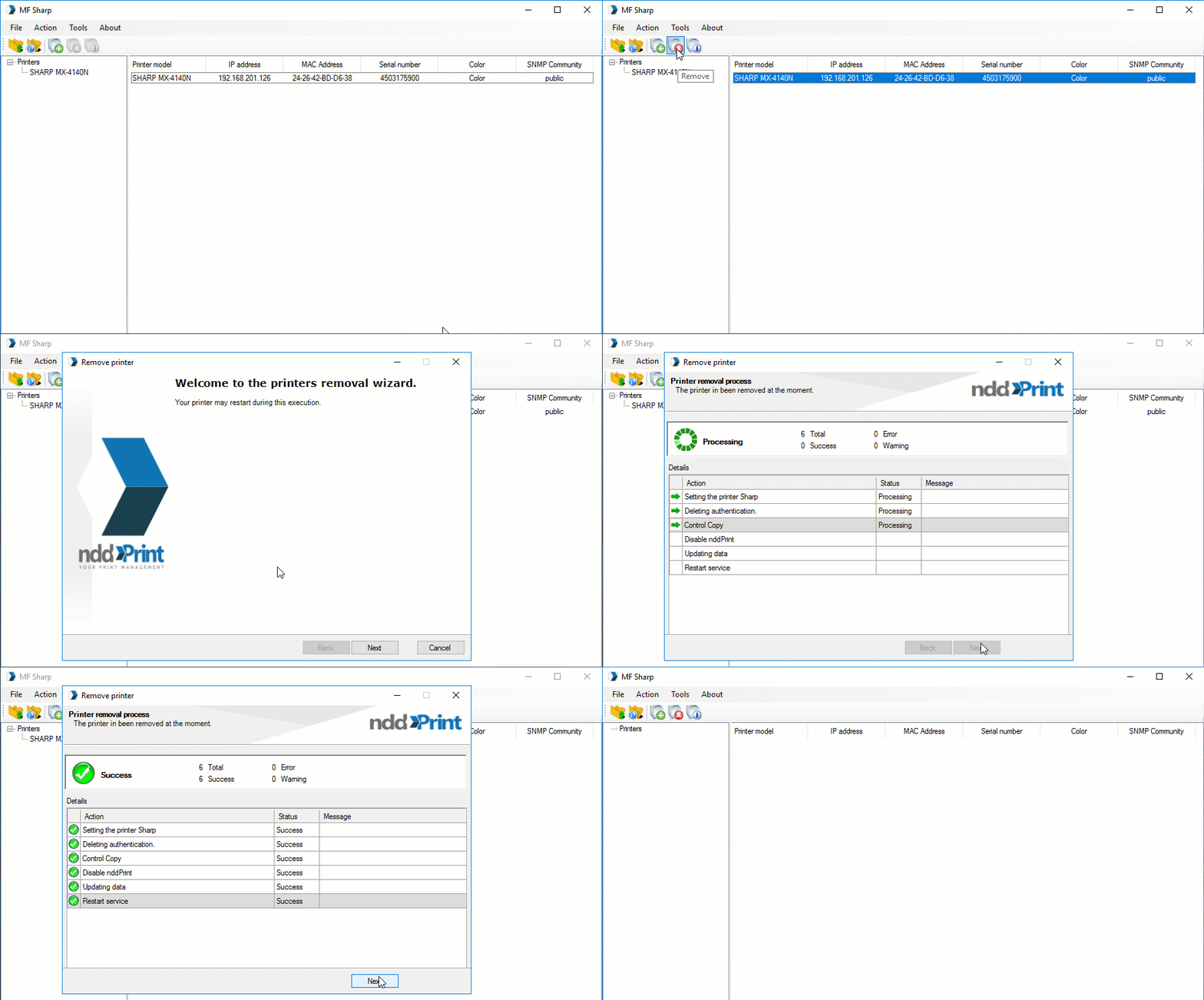
To remove a printer > select the printer(s) > menu Action > option Remove
-
If you set up the use of the NDD Print Client, follow the wizard steps by clicking Next;
-
Wait while the settings are removed from each printer.