
For more information on installation methods, obtaining licenses, and other procedures, access the official HP documentation.
Installation via the Web Interface (EWS)
-
Download the HP Workpath NDD Print Client installer from the Resources Portal
-
Extract the files to a folder of your choice (e.g., Downloads)
-
Access the printer's Embedded Web Server (EWS)
There are several ways to open the printer's EWS:
-
A local network connection: When the printer is connected via a wireless or wired (Ethernet) connection, enter the printer’s IP address in your web browser.
-
The HP app: On a computer or device, open the printer’s Advanced Settings in the app.
-
A Wi-Fi Direct connection: Connect your printer via Wi-Fi Direct to your computer or device, and then enter the printer’s IP address in your web browser. Support for Wi-Fi Direct varies by printer model.
-
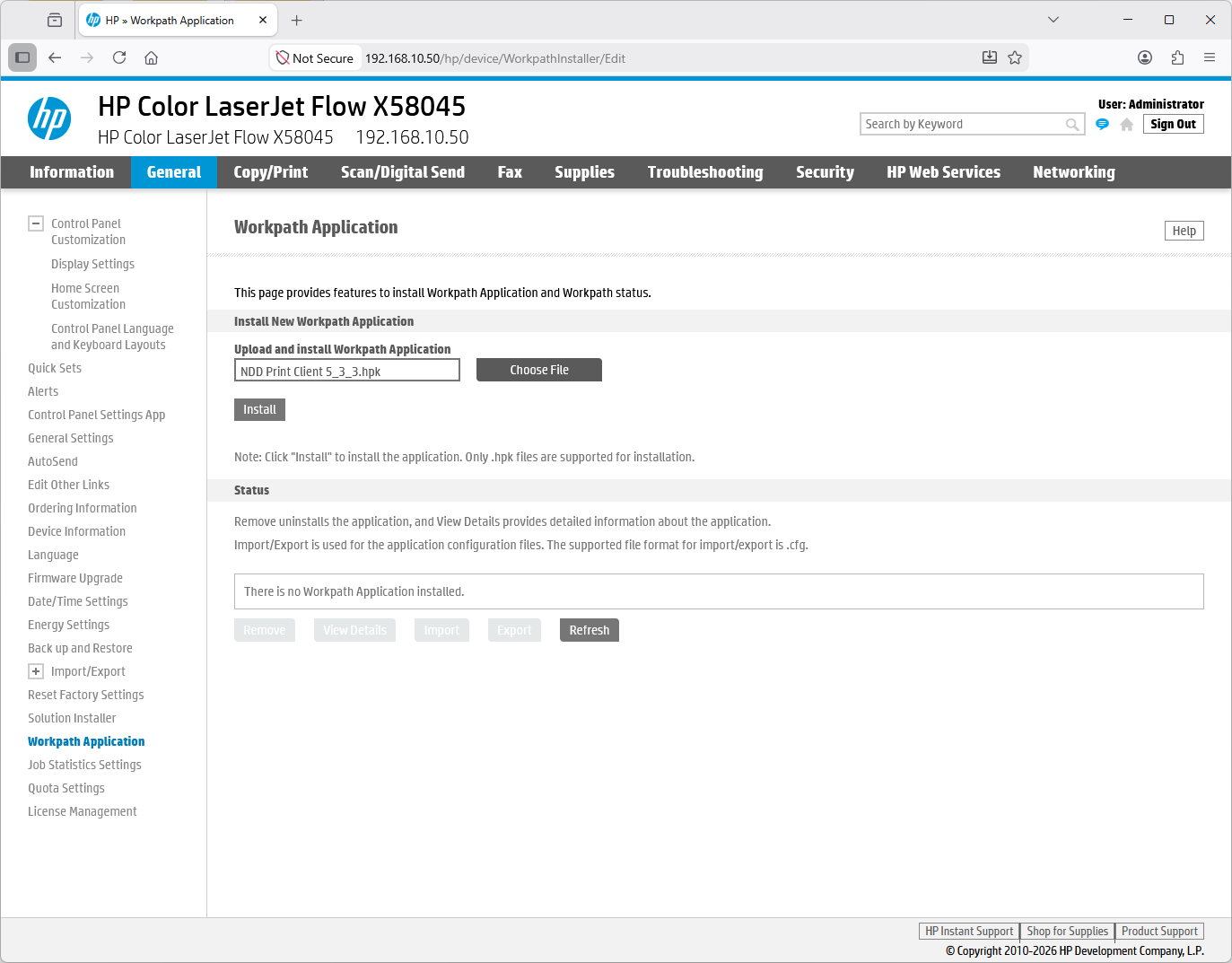
Click General above, and then Workpath Applications in the list on the left
-
Select the NDD Print Client.hpk file that you downloaded and extracted to your preferred folder
-
Click Install
-
On the Confirmation Page, click Install
-
Wait for the installation to complete
-
A message stating Installation Complete should appear
-
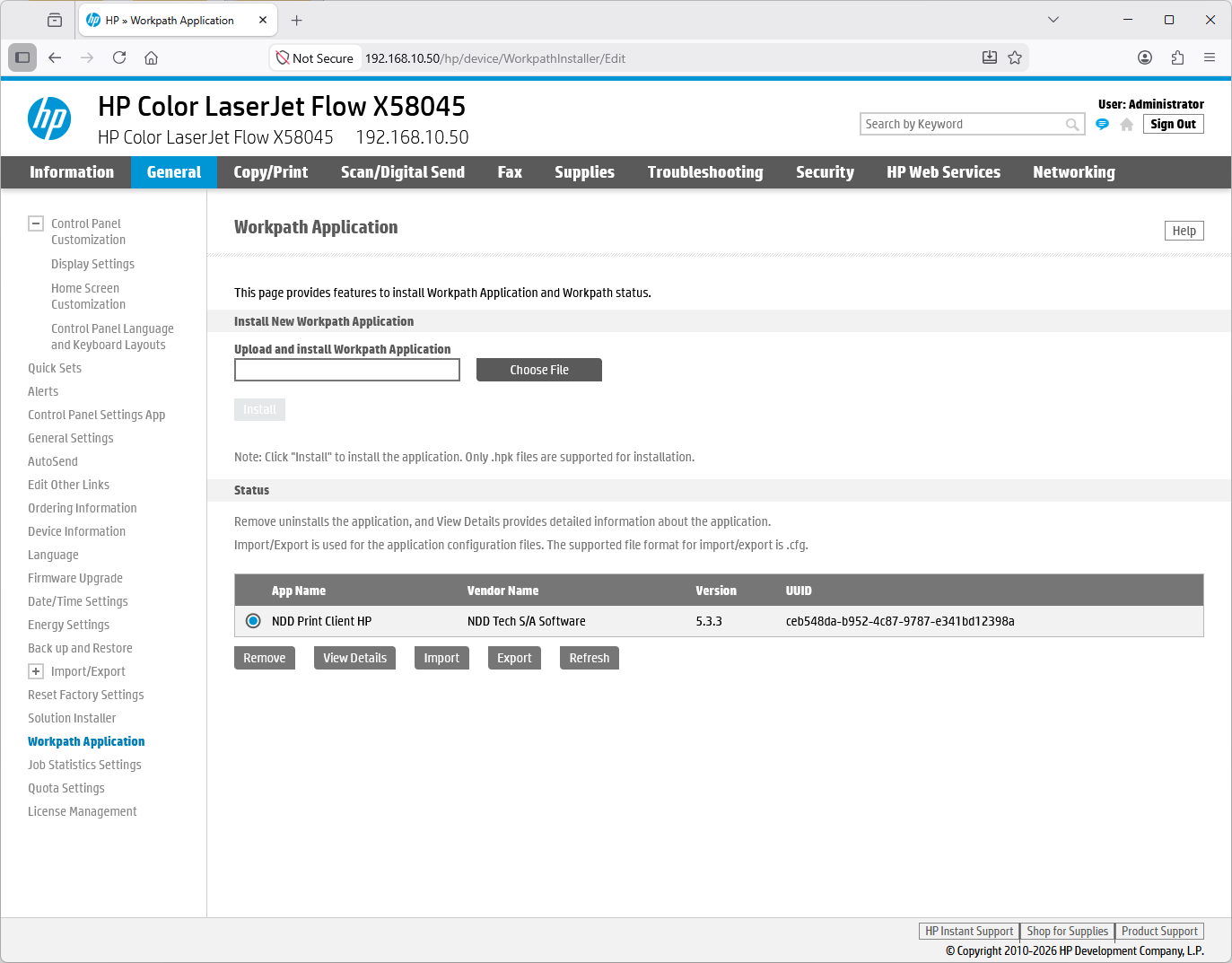
The app should appear in the Status list, as shown in the image.
Uninstall via the Web Interface (EWS)
-
Access the printer's Embedded Web Server (EWS)
-
Click General above, and then click Workpath Applications in the list on the left
-
In the Status list, where the installed applications appear, click Remove
-
On the Confirmation Page, click Remove
-
Wait for the removal to complete
-
The message Removal Complete should appear.