
For more information on installation methods, obtaining licenses, and other procedures, access the official HP documentation.
Installation via the Command Line Interface (CLI)
-
Download the HP Workpath NDD Print Client installer via the Resources Portal
-
Download the HP Workpath App Manager from the HP Download Center and extract the files to a folder of your choice
.jpg?cb=8a07f5160105d0d7242c5fac65a8436e)
Here are the main files:
-
WorkpathAppManager-cli.exe: a command-line tool
-
devices.csv: a file for specifying the IP addresses of the devices to be used.
-
devices_config_update.csv: a file for specifying device IP addresses, passwords, UUIDs, configuration settings, and variables (optional) to configure the applications.
-
Open the devices.csv file in Excel
-
Select the entire first column (A)
-
In the Excel search bar, search by “Convert text to table”
-
Under Data type, select the “Delimited” option
-
Click Next
-
Under Delimiters, select only the Comma option
-
Click Finish
-
Specify the IP addresses of the devices on which the application will be installed.
-
Save and close
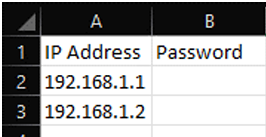
If the devices have EWS administrator passwords set, enter those passwords in the Password column; otherwise, leave this field blank.
The values pre-filled in the header row (IP address, password) must not be removed or changed.
-
Open the devices_config_update.csv file in Microsoft Excel
-
Select the entire first column (A)
-
In the Excel search bar, search by “Convert text to table”
-
Under Data Type, select the “Delimited” option
-
Click Next
-
Under Delimiters, select only the Comma option
-
Click Finish
-
Specify IP addresses, password (optional), UUID, configuration, and variables (optional) to configure the applications
-
Save and close

-
Access the folder where the
WorkpathAppManager-cli.exefile is saved -
Copy the folder address
-
Go to the search button on the Windows taskbar and enter “Command Prompt”
-
Open the Command Prompt.
-
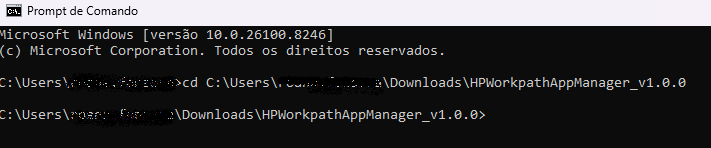
In the Command Prompt, type `cd`, paste the folder address, and press Enter
-
Paste the following command:
WorkpathAppManager-cli.exe --install --pkg .\hpk\NomeDoApp.hpk --devices devices.csv
-
Please wait while the process runs. A results file (.csv) will be generated showing the installation status.
Uninstallation via the Command Line Interface (CLI)
-
Access the folder where the WorkpathAppManager-cli.exe file is saved -
Copy the folder address
-
Go to the search button on the Windows taskbar and enter “Command Prompt”
-
Open the Command Prompt.
-
In the Command Prompt, type `cd`, paste the folder address, and press Enter
-
Run the following command:
WorkpathAppManager-cli.exe --getpkgid --pkg .\hpk\NomeDoApp.hpk
-
Copy the UUID displayed at the prompt
-
Run the uninstall command:
WorkpathAppManager-cli.exe --uninstall --pkgid SEU-UUID-AQUI --devices devices.csv
-
Please wait while the process runs. A results file (.csv) will be generated showing the uninstallation status.