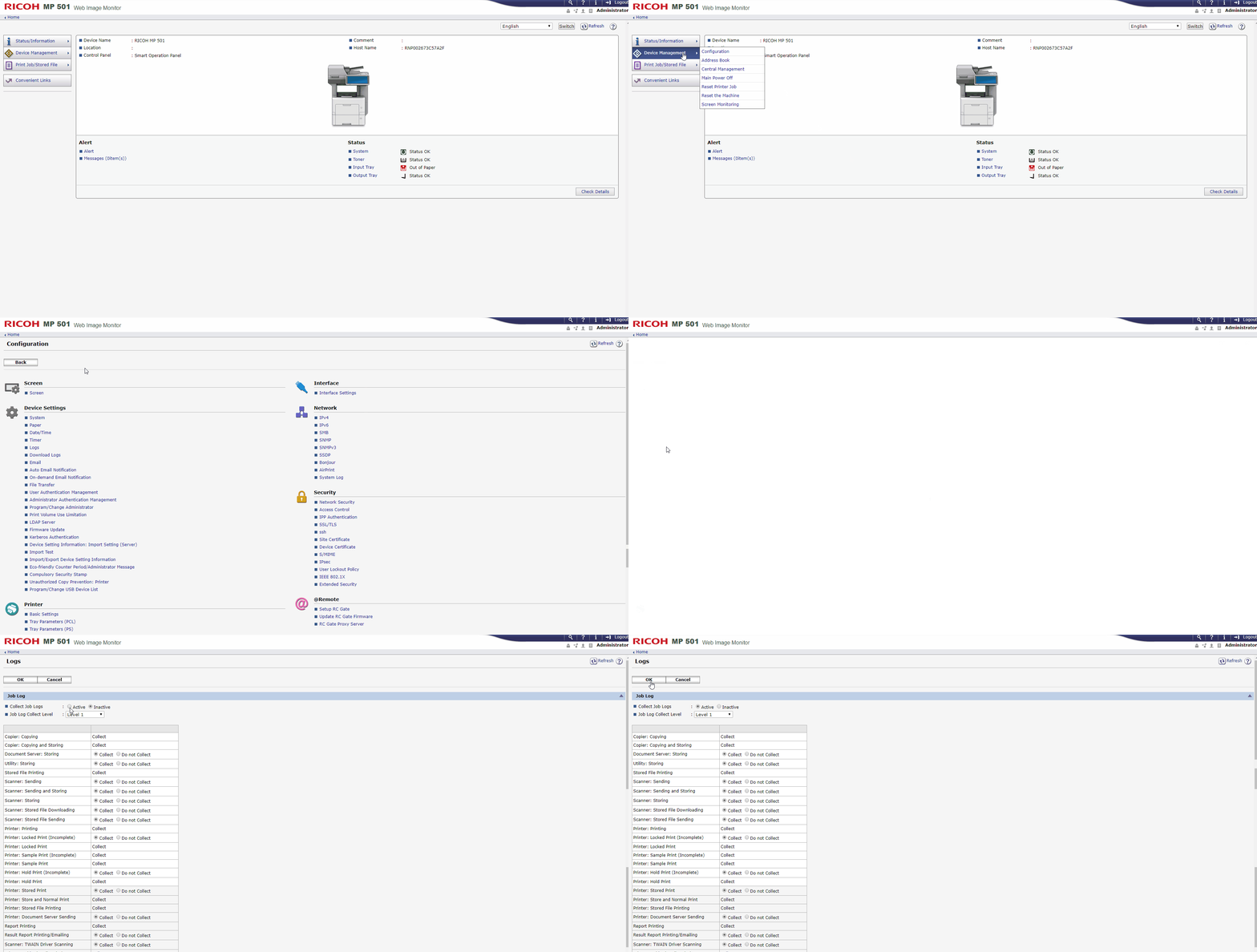
Function Priority
-
Login as an Administrator on the printer panel;
-
Go to Settings > Screen Features Settings> Screen Device Settings > Function Priority;
-
Make sure Home option is selected.
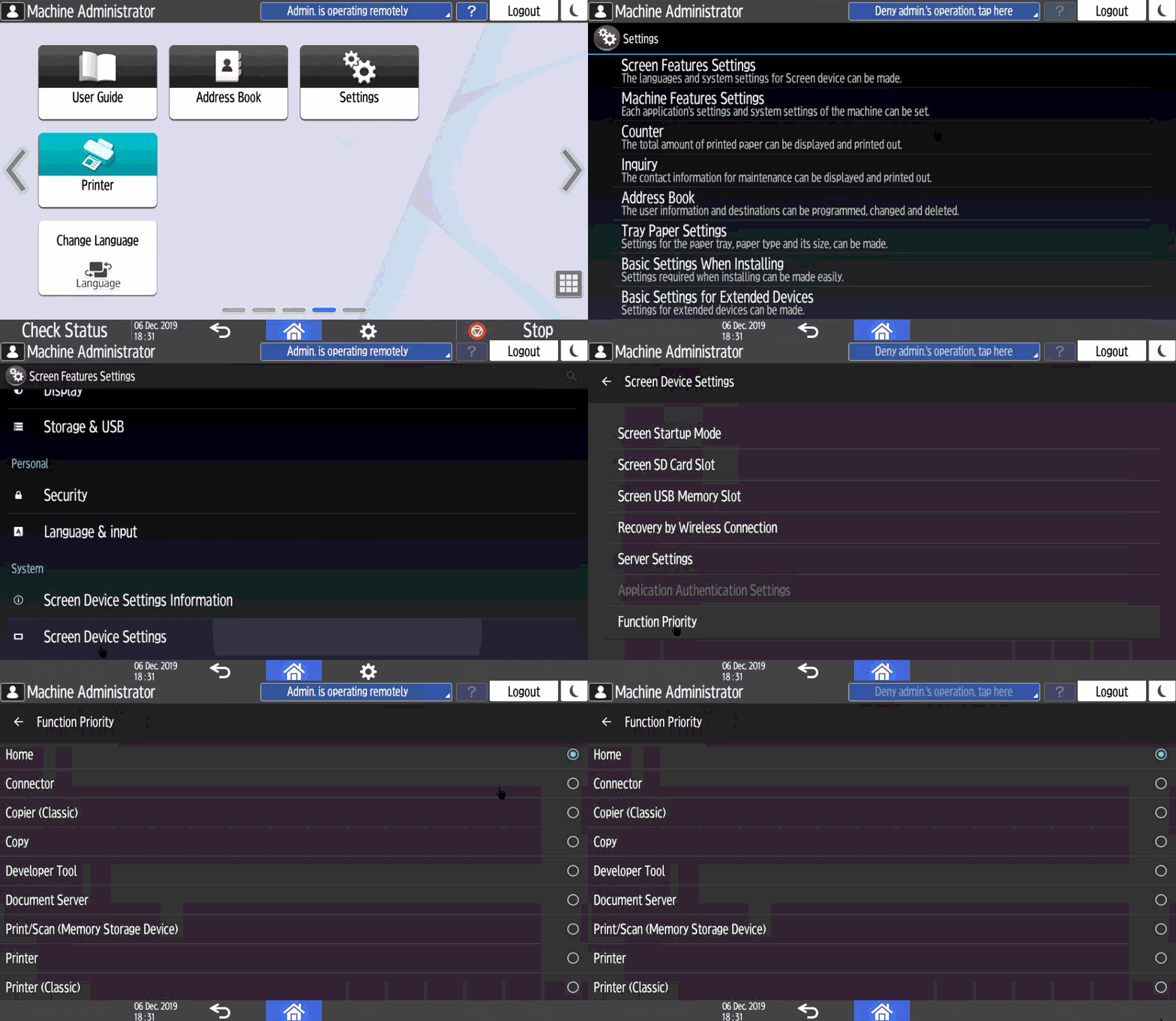
Configure Printer Interface Settings
-
Open a classic application in the printer panel (e.g. classic copy) and press the keys Reset > 806182##C;
-
Go to option Screen Device Settings;
-
Check the option Screen device always-connection Setting.
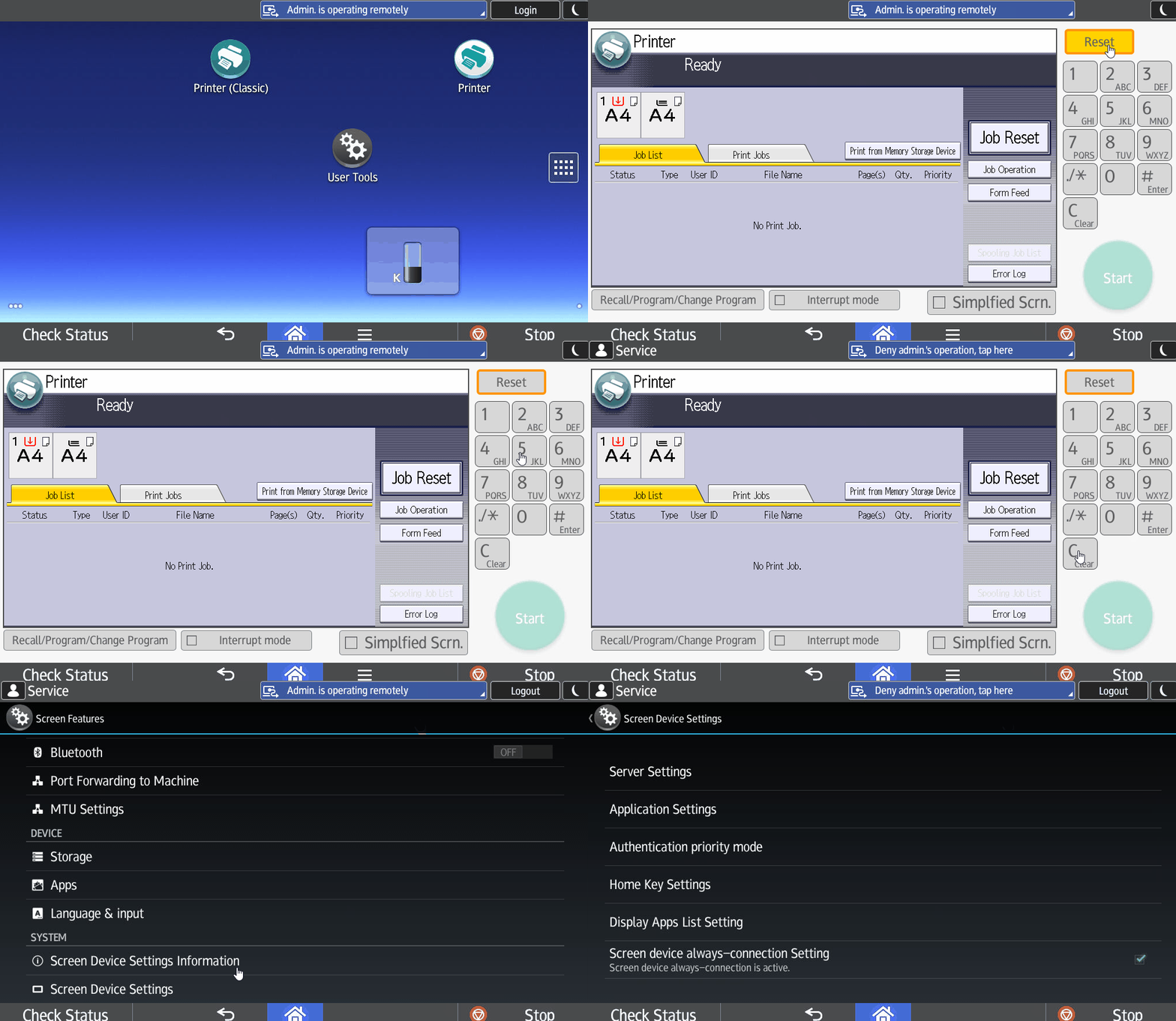
Block system functions
-
Login as an Administrator on the printer Web Page;
-
Go to Device Management > Configuration;
-
Under Device Settings, access the item User Authentication Management;
-
Under LDAP Authentication Settings, check the option LDAP Authentication (1: Not programmed);
-
Click OK.
NOTE
Other fields must be unchecked.
For IM series printer, you need to check the following configuration:
-
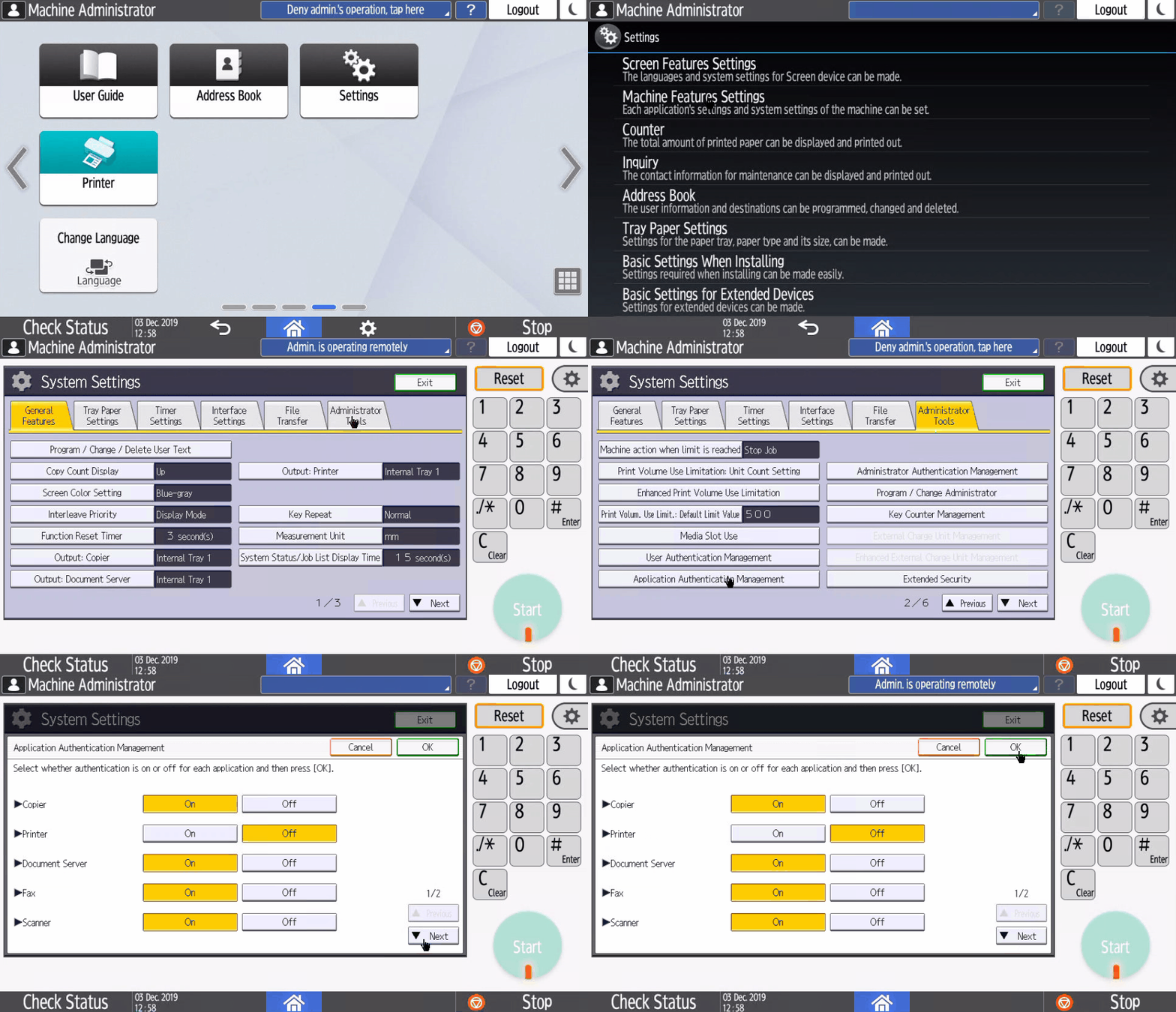
Login as an Administrator on the printer panel;
-
Go to Settings > Machine Features Settings> System Settings;
-
Go to tab Administrator Tools;
-
Got to option Application Authentication Management (page 2);
-
Make sure the Copier, Document Server, Fax and Scanner functions are enabled leaving only the Printer function disabled.
Configure TimeOut (access to native printer functions)
-
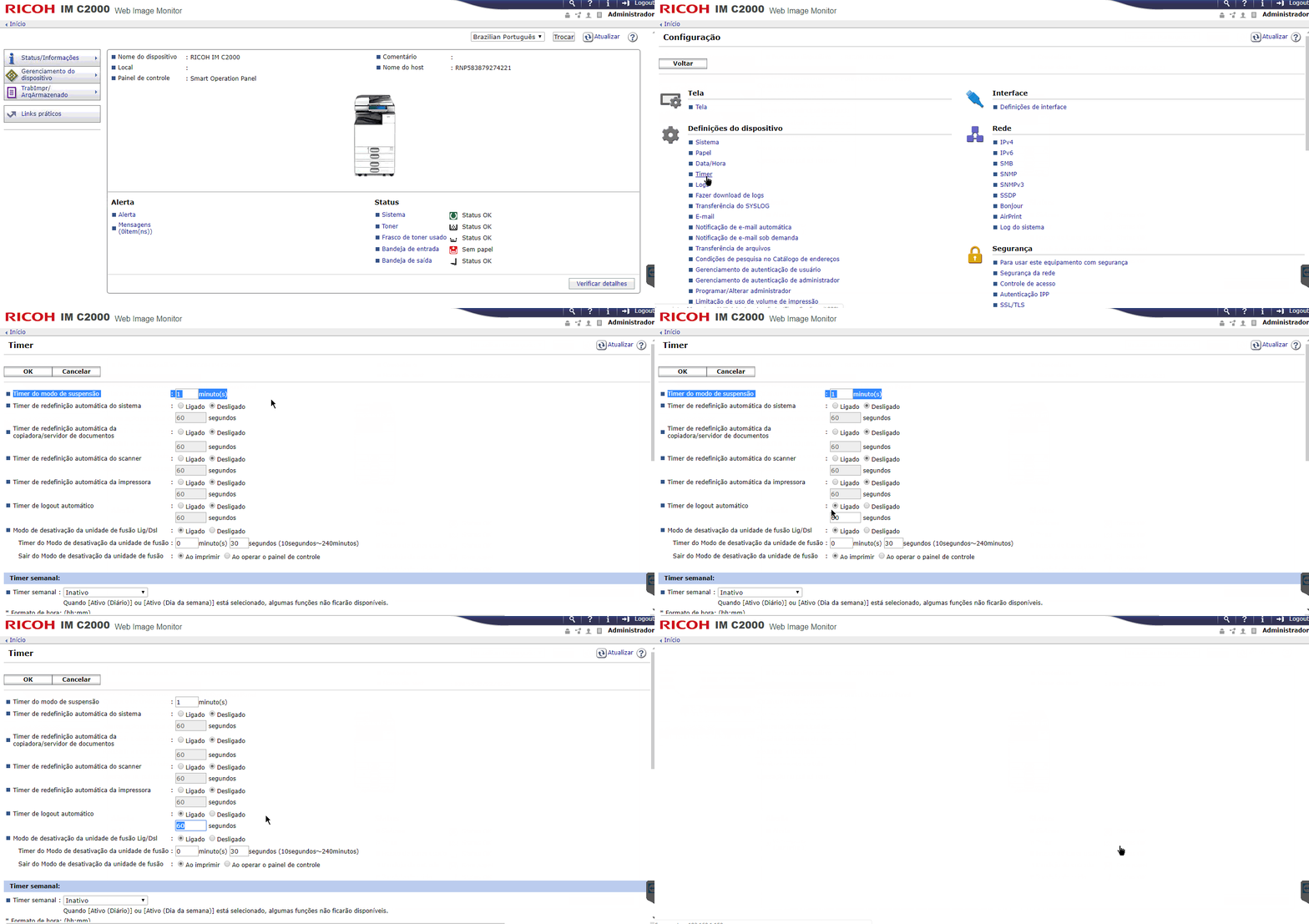
Login as an Administrator on the printer Web Page;
-
Go to Device Management > Configuration;
-
Under Device Settings, access the item Timer;
-
Sleep Mode Timer: set the desired time;
-
Auto Logout Timer: check the option On and set the desired time.
-
ATENTION
System Auto Reset Timer must be set to Off.
IMPORTANT
NDD Print Client application timeout is configured on Portal 360;
When accessing the native printer interface, the considered timeout becomes what is set in the printer itself.
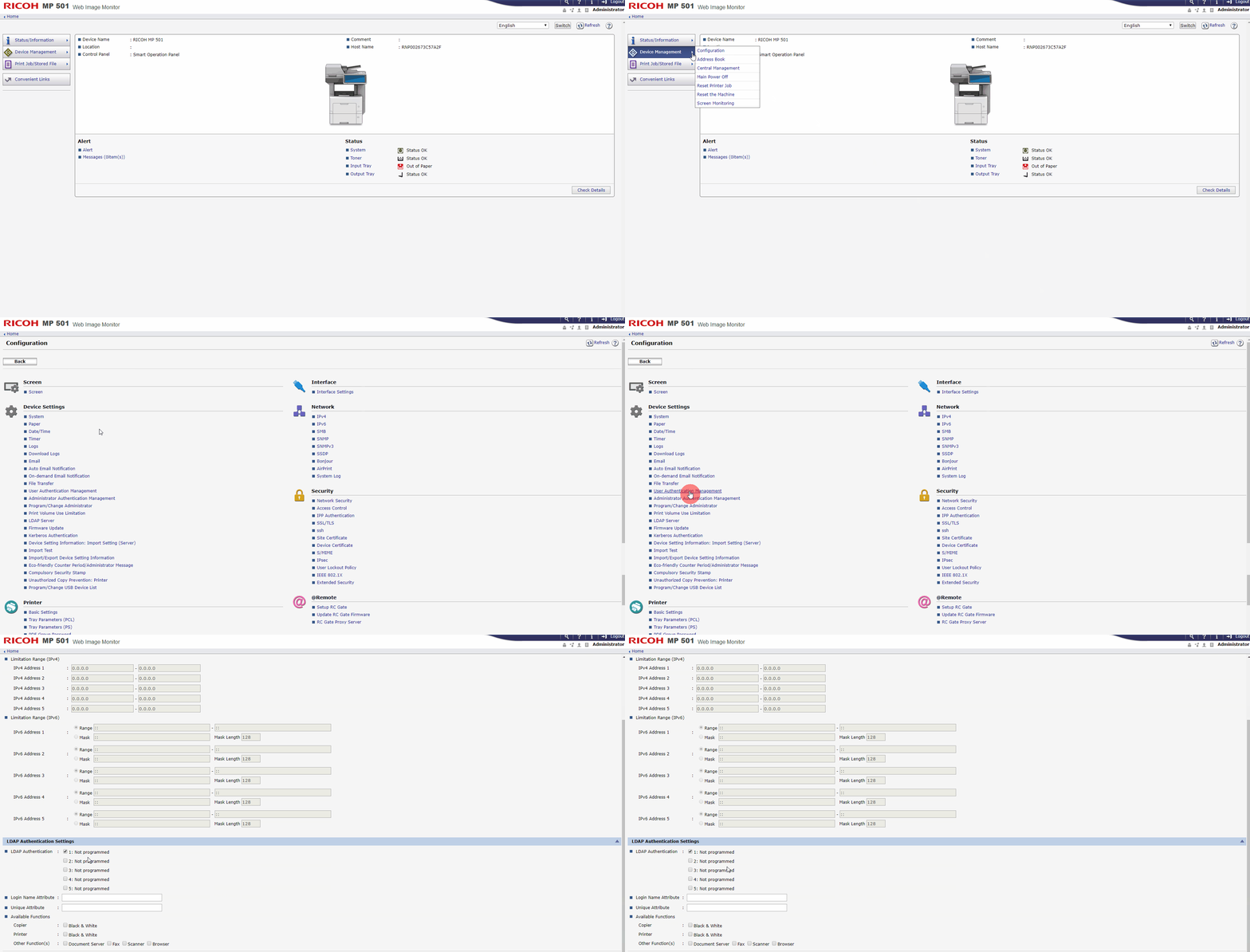
Enable Job Log Collection (Collector)
-
Login as an Administrator on the printer Web Page;
-
Go to Device Management > Configuration;
-
Under Device Settings, access the item Logs;
-
Under Job Log, activate the option Collect Job Logs;
-
Click OK.