
1. Access the portal 360
Go to the portal 360 and click Create a company.
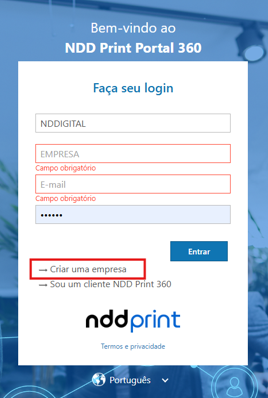
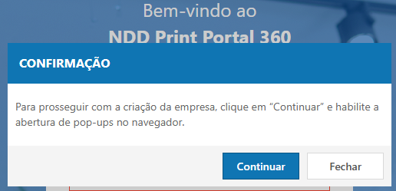
When your browser asks for permission to open a pop-up window, allow it to open. Then click Continue.
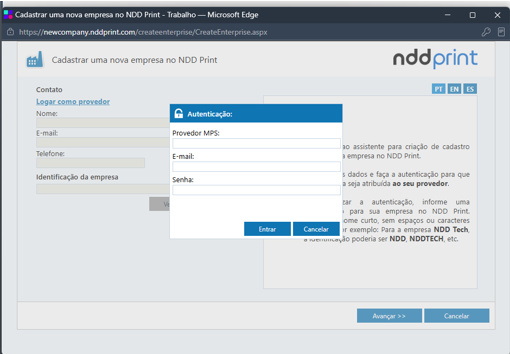
2. Log in
On the page that opens, enter:
-
MPS Provider
-
Email
-
Password
Use the same access credentials you use for MPS.
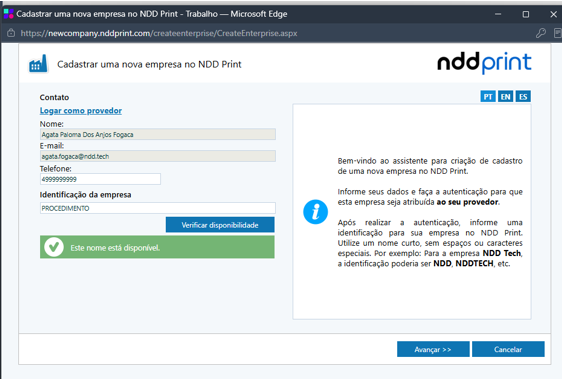
3. Enter and validate the company ID
Enter a contact phone number and a company ID in NDD Print. This ID must be short and contain no spaces or special characters.
After entering it, wait for the system to validate it; the system will indicate whether it is available.
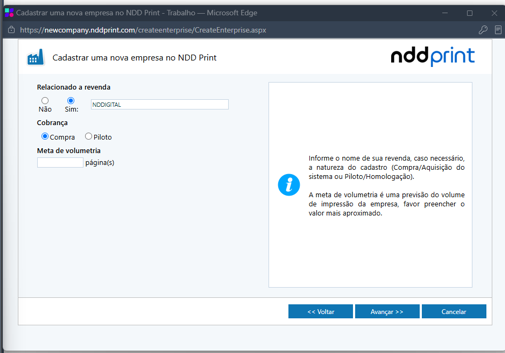
4. Provide reseller and registration information
Fill in the requested information:
-
Reseller name, when applicable;
-
Type of registration: Purchase/Acquisition of the system or Pilot/Approval;
-
Volume target: estimated number of prints expected for the company.
Provide an estimate as close as possible to the expected volume.
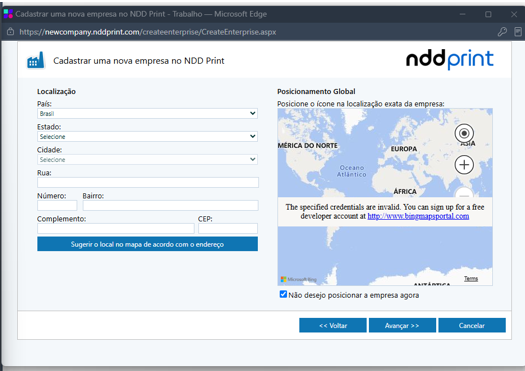
5. Provide the company's location
Fill in the requested location data.
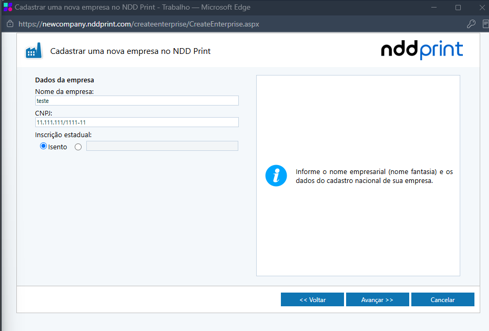
6. Enter the customer company's information
Fill in the registration data based on the company's official records.
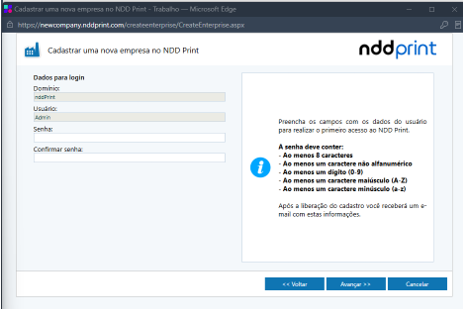
7. Create a password
Set the password for the administrator user of the Gestão 360 Portal. The password must contain:
-
At least 8 characters;
-
At least 1 non-alphanumeric character;
-
At least 1 digit from 0 to 9;
-
At least 1 uppercase letter;
-
At least 1 lowercase letter.
Once your registration is approved, the login data for your first access to NDD Print will be sent via email.
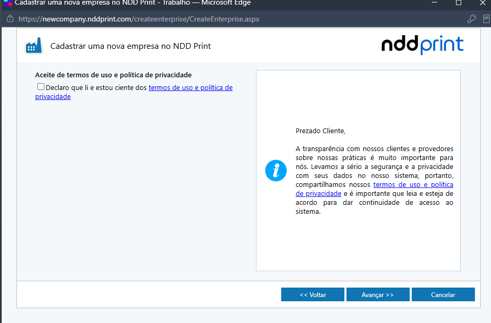
8. Accept the terms
Read the Terms of Use and the Privacy Policy. If you agree, accept them to continue.
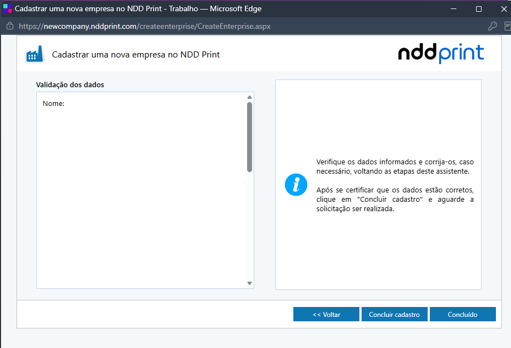
9. Review and complete the registration
Review the data you entered. If you need to correct any information, return to the corresponding step.
Once you have confirmed that the data is correct, click Complete Registration and wait for the request to be processed.
Wait for the company key to be released
The Sales team is responsible for approving and releasing the company key. This process takes up to 24 hours.
If you need immediate release, send an email to assiscom@ndd.tech, stating that the database has been created and requesting expedited release.