This functionality allows the user to delegate a printout to someone else, that means someone else can release the document.
Before you start
-
You must Enable the document delegate function in the NDD Print Releaser.
-
You must Enable save documents function in NDD Print Releaser.
-
The quotas and policies will be applied to the user who owns the delegated document.
-
Only administrator users can configure the user view.
To delegate pending documents
-
Go to Pending Documents
-
Select the document(s) you want to delegate
-
Click on Delegate
-
Go to the Delegation > Add tab
-
Select the user's domain
-
Select the User you wish to delegate
-
Click on Add
To delegate saved documents
-
Go to Saved Documents
-
Select the document(s) you want to delegate
-
Click on Delegate
-
Go to the Delegation > Add tab
-
Select the user's Domain
-
Select the User you wish to delegate
-
Click on Add
You can Add affinities with another user, so that all documents can be released by the linked user.
You can define some actions for the document
-
After printing: Allows you to choose whether the printed document will be saved or deleted after printing.
-
After saving: Allows you to choose whether the printed document will keep the delegation or remove the delegation after printing.
-
Out of storage space: Allows you to choose whether the document will be printed or not when the user is out of storage space.
Viewing users
By default, NDD Print Releaser Web will display all users that belong to the selected domain. Depending on the number of records, we recommend that you disable this setting.
The setting is made by changing the NDD Print Releaser Web appsettings.config file. To do this:
-
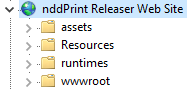
Go to the NDD Print Releaser Web installation folder
The default folder is: C:\Program Files\NDDigital\nddPrint\Releaser Web\Portal
-
Open the
appsettings.configfile as administrator -
Look for the setting
ShowAllUsersOnLoad -
Change its value to
false -
Save and close the file
-
Restart the NDD Print Releaser web site in IIS